Staff accounts and clinic settings
Everybody who works in the clinic gets their own login. That is what makes the audit trail mean anything, and it is what a shared account destroys.
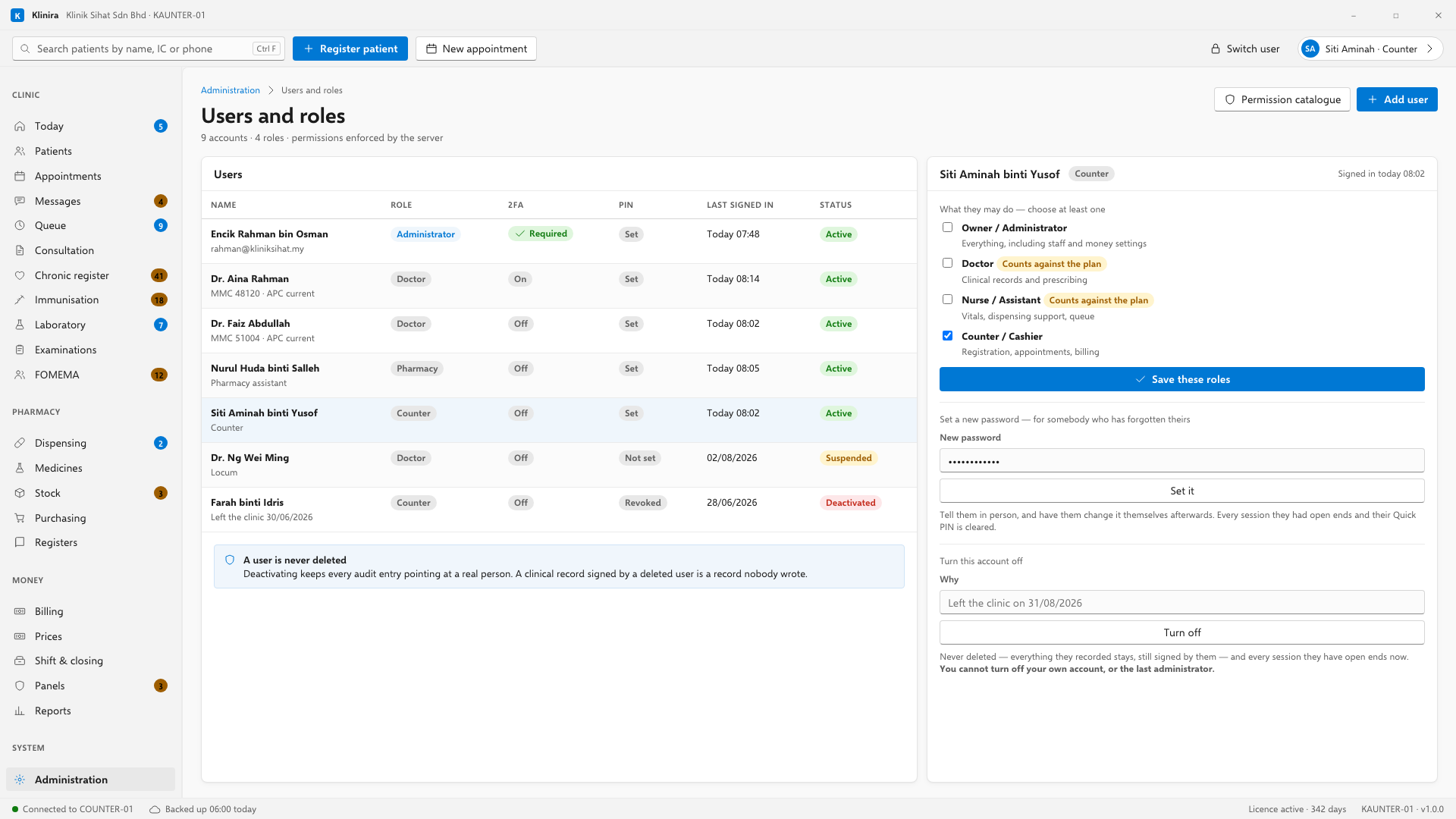
Adding somebody
- 1Open Administration, Staff, and press Add.
- 2Give them a username, their full name, and a starting password.
- 3Choose at least one role. An account with no role can sign in and do nothing.
- 4For a doctor or dentist, enter the MMC or MDC number. It prints on prescriptions and medical certificates.
- 5Hand them the password and let them change it.
Somebody has forgotten their password
It happens on a Monday morning, in front of a queue. Click the person in the list, and under Set a new password, type one and press Set it. Tell them in person, and have them change it themselves afterwards.
- Setting a new password ends every session they had open and clears their Quick PIN, so nothing carries on running under the old one.
- Somebody who has typed the wrong password too many times is locked out rather than forgotten. Let them try again clears that without changing the password.
- Never solve this by making them a second account. One person with two logins is one person whose history is in two places.
When somebody leaves
Turn the account off, with a reason. It is never deleted: every note, every dispensing entry and every payment points at it, and a note signed by a deleted user is a note nobody wrote. Turning it off ends every session they have open immediately.
Two things Klinira will not let you do
- Turn off your own account. Ask another administrator.
- Leave the clinic with no account that can manage staff. Give somebody else the administrator role first.
Clinic settings
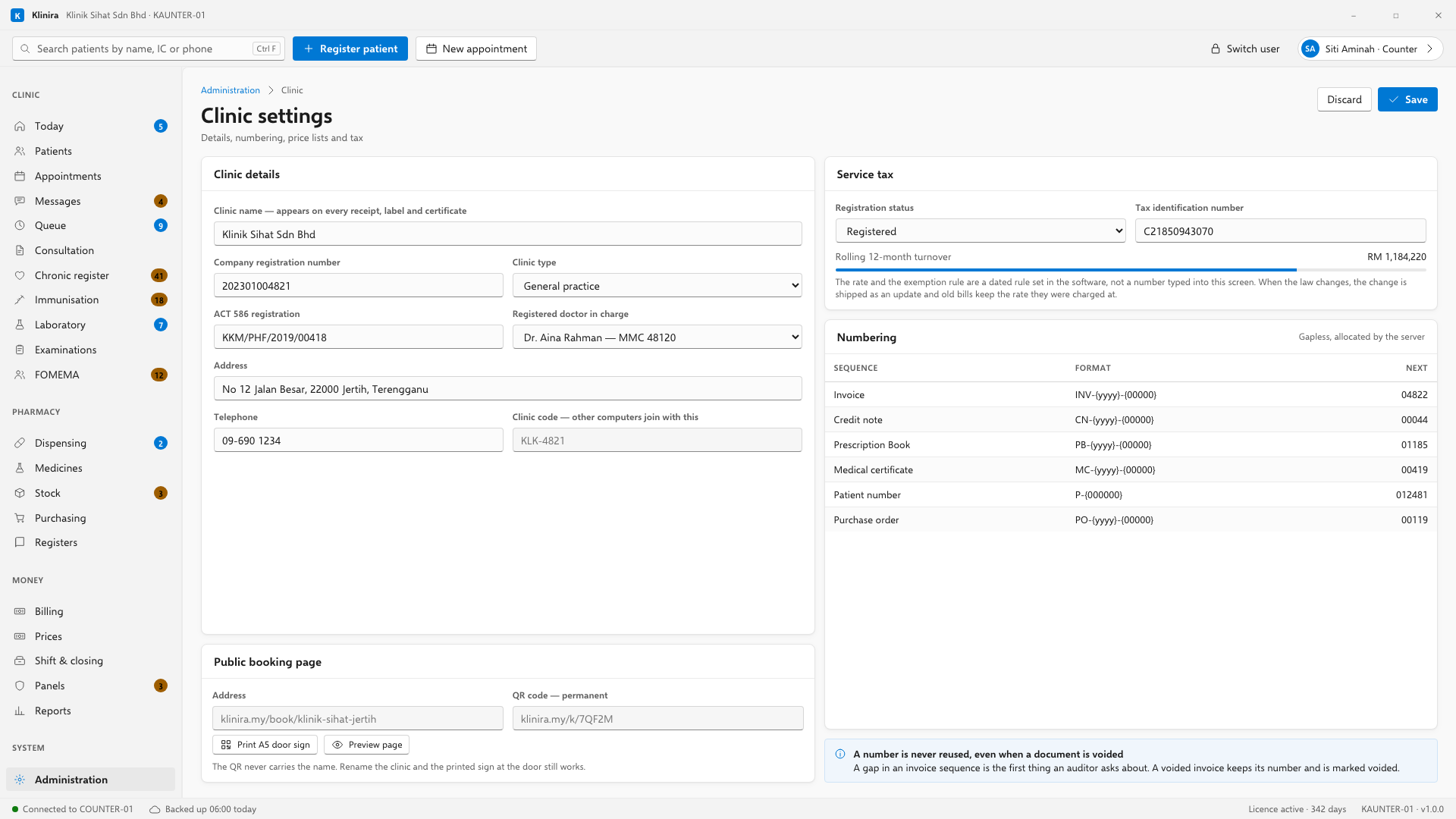
- Clinic name, address and registration numbers. These print on everything.
- Price lists: the standard one, one per panel, and any staff or family rate.
- Service tax registration, once turnover reaches the threshold. Klinira watches the rolling twelve months and puts a line on the status bar as you approach it — at 80% unless you change that — so you are told before you cross it, not after. Only accounts and the owner see the line.
- Opening hours, which is also what the public booking page publishes.
Devices
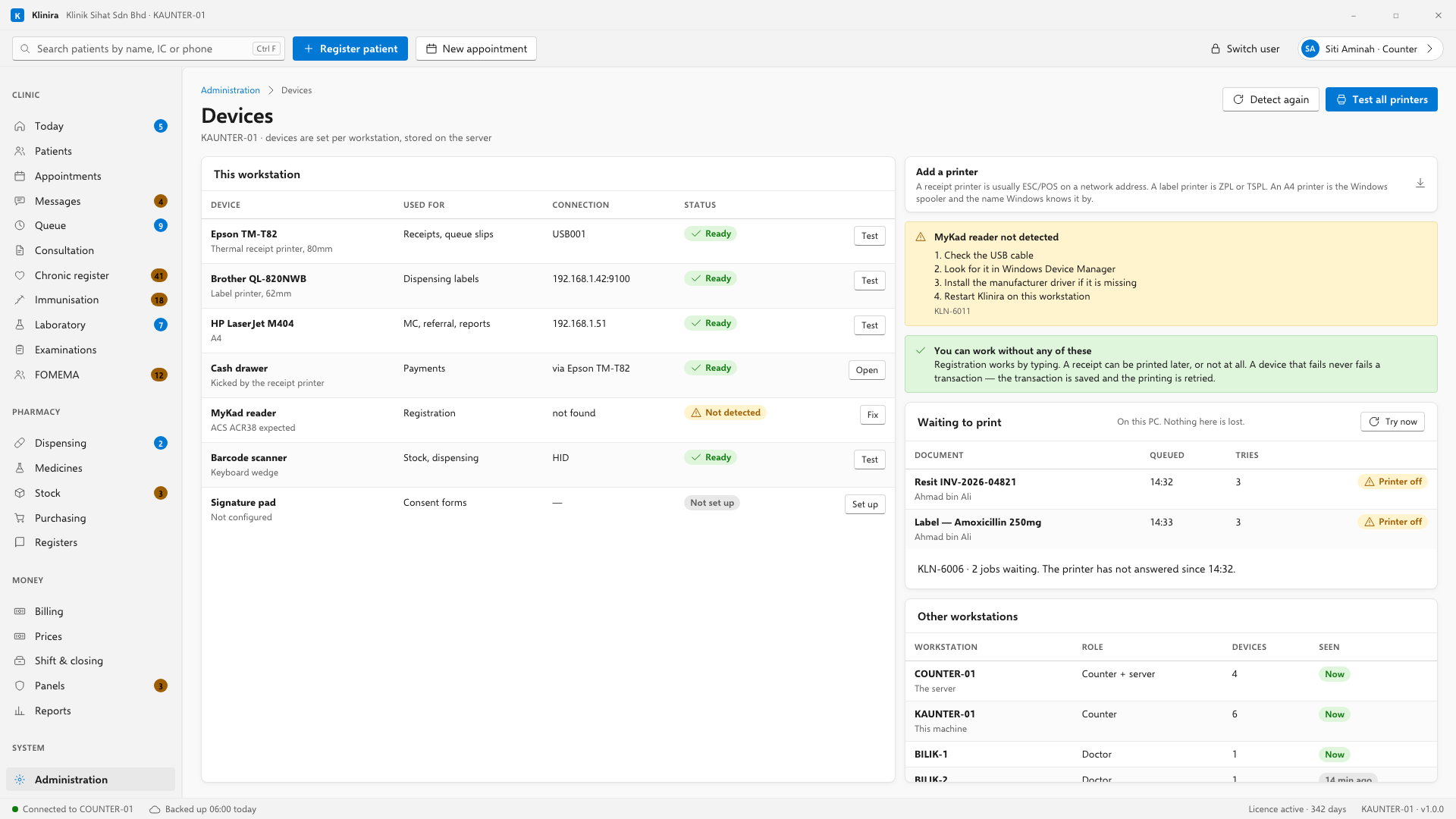
When you telephone support and say a printer is not working, this is the first screen you will be asked to open. Every member of staff can open it and print a test page — a screen only the owner can open is a screen that cannot be opened on a Tuesday morning when the owner is not in, which is when printers fail.
Adding a printer
Add a printer is the strip beside the list. Give it what the printer is for — receipts, dispensing labels or A4 documents — the driver, and where it is.
| What it is for | What to put in |
|---|---|
| Receipts | ESC/POS, and the address on the clinic network — usually something like 192.168.1.42:9100, or a USB port. |
| Dispensing labels | ZPL or TSPL, whichever the label printer speaks, and its address. |
| A4 documents | The Windows spooler, and the name Windows knows the printer by. |
Updates
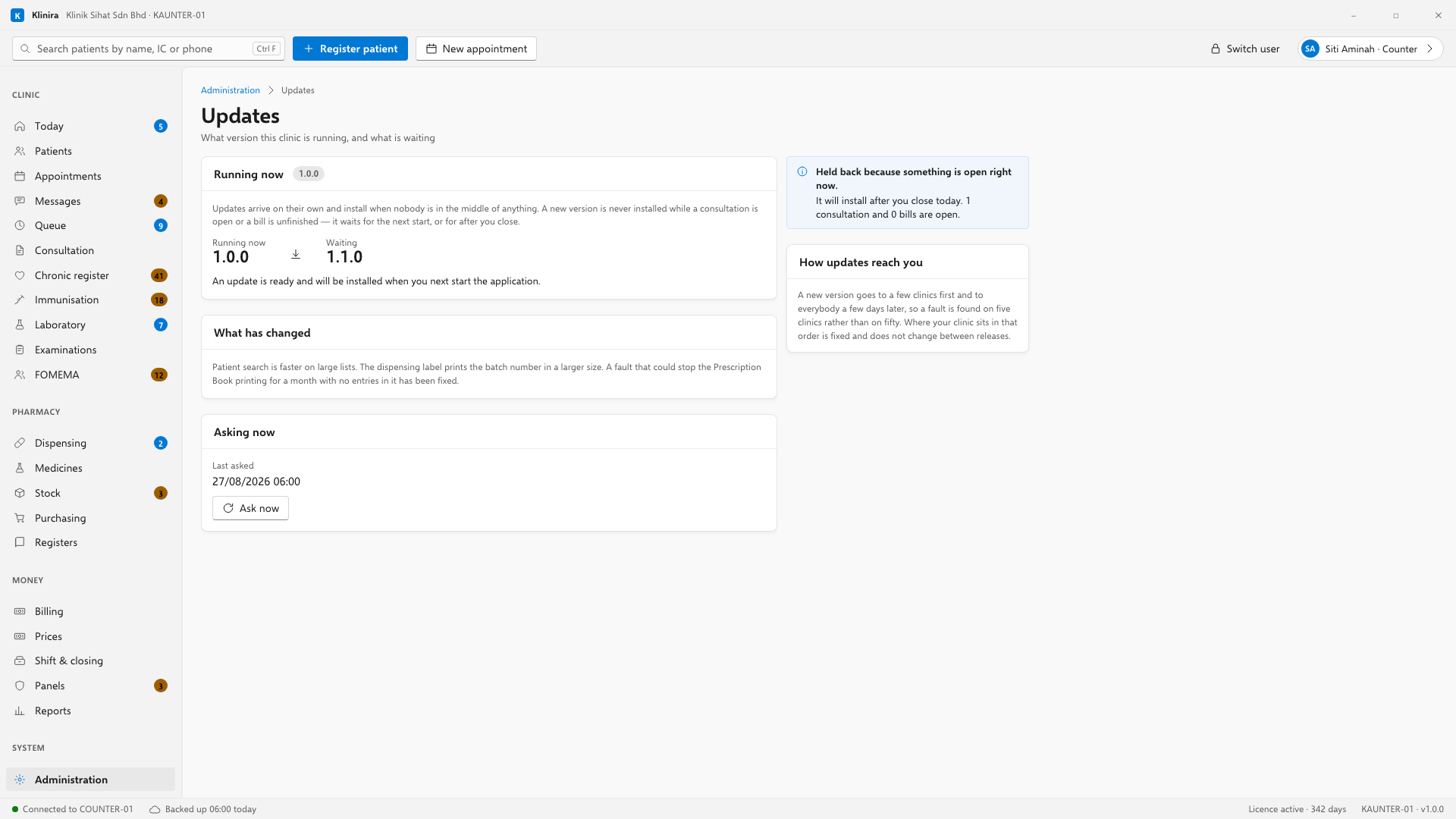
Updates arrive on their own. A new version goes to a few clinics first and to everybody a few days later, so a fault is found on five clinics rather than on fifty — where your clinic sits in that order is fixed and does not change between releases. When one is waiting, a line appears at the bottom of the window saying so, for everybody, not only the owner.
Records somebody has open
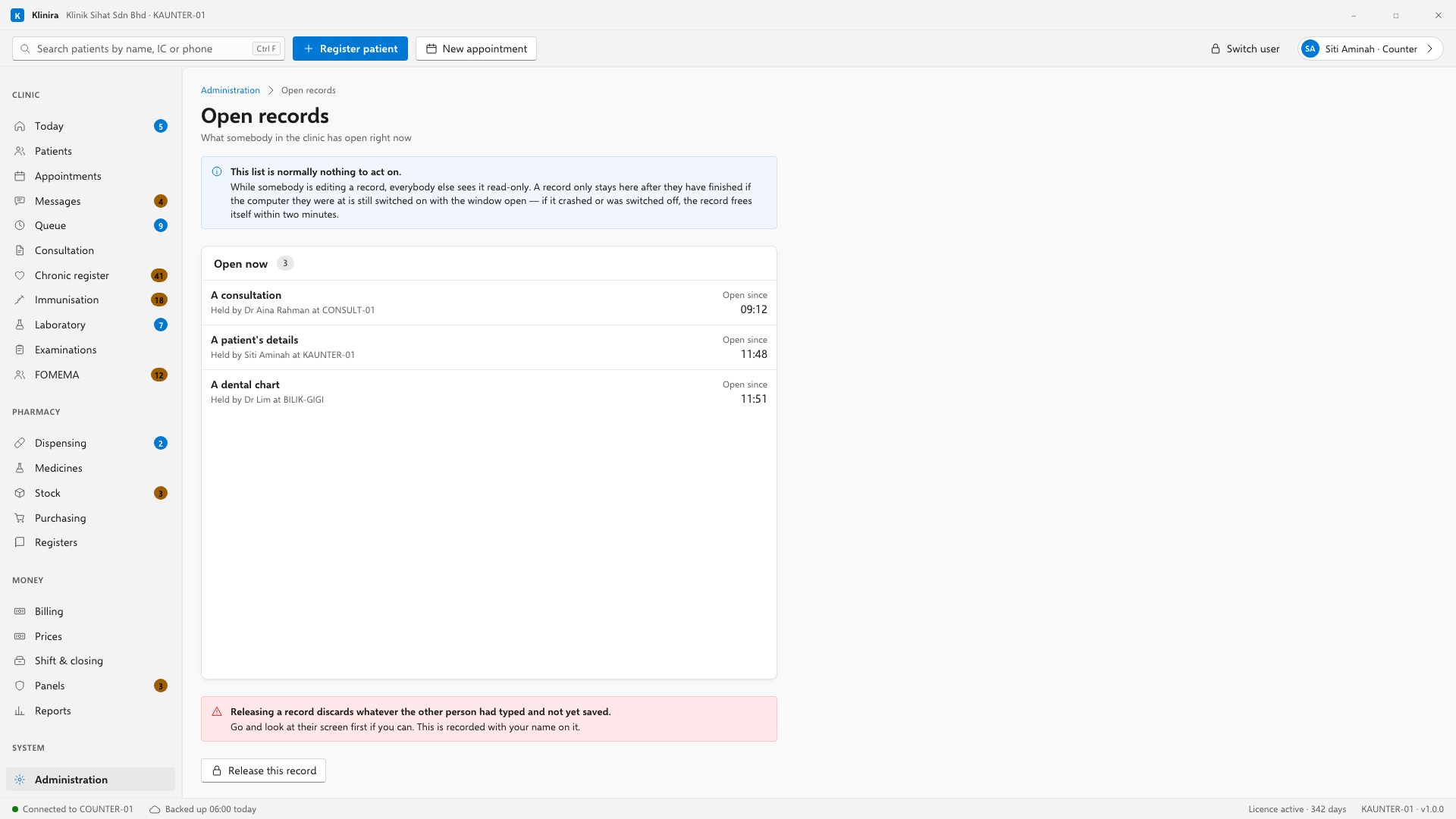
While somebody is editing a record, everybody else sees it read-only with a line saying who has it. That is normal and needs nothing done to it. A record only stays open after they have finished if the computer they were at is still switched on with the window up — if it crashed or was switched off, the record frees itself within two minutes.
Take a place in the first installs
Klinira is being built now. Leave your details and you will hear what is finished, be asked what your clinic actually needs, and get the first install dates when it is ready.