The owner's iPhone and iPad app
A small app for the clinic owner who is not at the clinic. It shows how the clinic's day went: patients, money, stock warnings and whether the backup ran. It only shows figures. It never shows a patient, and it cannot change anything at the clinic.
What this app is, and what it is not
- It shows twelve numbers about each day: patients seen, new patients, cash, card, QR, panel bills, panel money still owed, low stock, batches expiring, the backup, the date and the clinic's Klinira version.
- No patient information ever reaches the phone. No name, no IC number, no diagnosis, no medicine name. Those stay on the clinic's own computer.
- It only reads. You cannot raise a bill, change stock or message a patient from it. To do those things, you must be at the clinic, or phone somebody who is.
- The figures arrive once a day. After the clinic's daily backup, the main computer sends the last whole day. So in the morning you normally see yesterday, not today so far.
- The app opens in English. You can change it to Bahasa Malaysia in Settings. This chapter uses the English button names, because that is what you see first.
- In this chapter, press means touch the button with your finger.
Before you start
- An iPhone or iPad with iOS 17 or newer.
- A passcode on the phone. Face ID or Touch ID is better still.
- The email address you will use. You must be able to open its inbox on the phone.
- Somebody at the clinic who can sign in to the Windows app as the owner, with the full password. The phone app does not work until the clinic switches it on.
Step 1: switch the phone dashboard on, at the clinic
This is done once, on a computer at the clinic, in the Windows app. The clinic must have internet at that moment. Only the owner's account may do it, and it asks for the full password, not the Quick PIN.
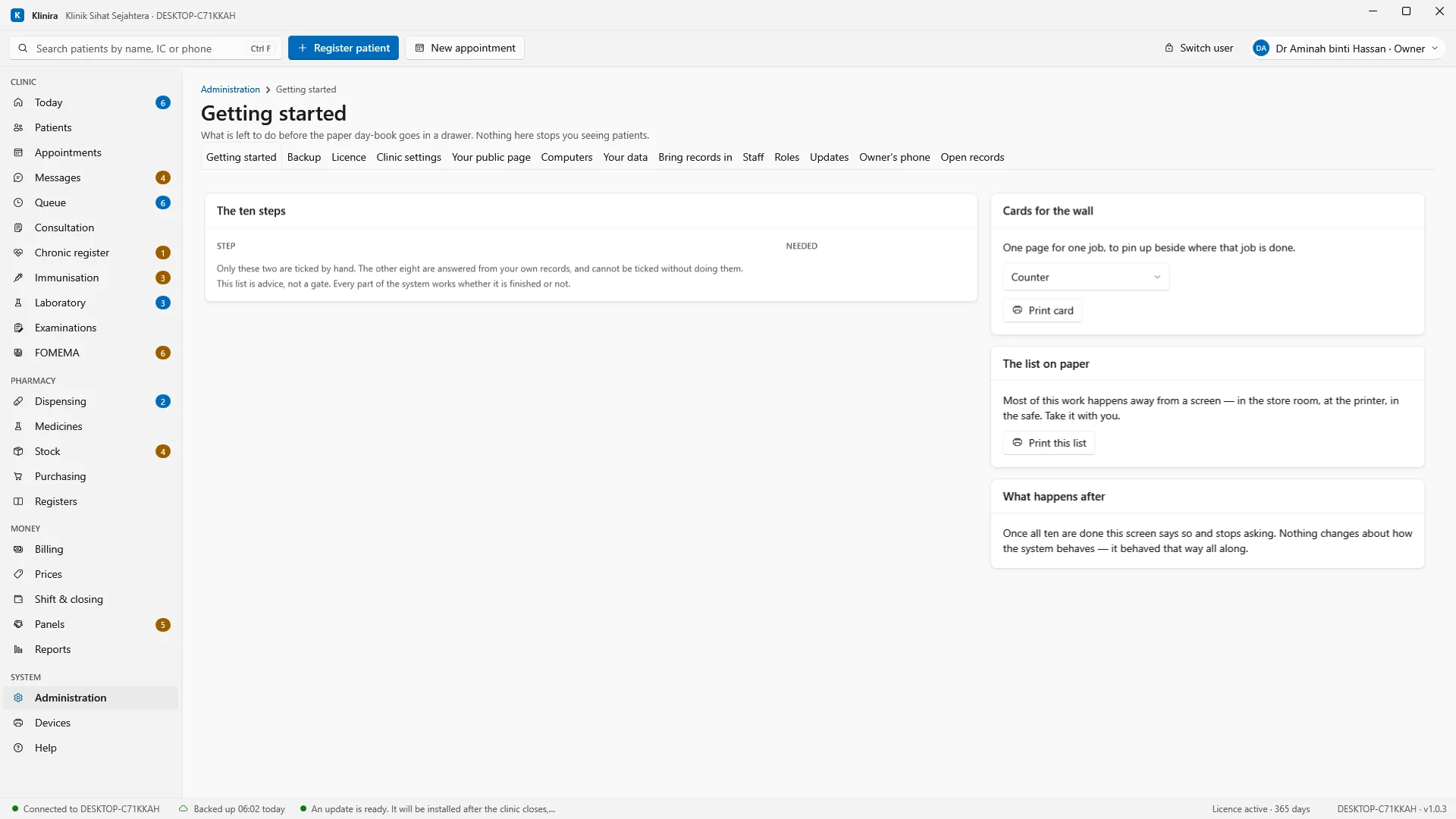
- 1Press Administration in the list on the left.
- 2Press the Owner's phone tab.
- 1On a computer at the clinic, sign in to Klinira as the owner, with your full password.
- 2Press Administration 1 in the list on the left side of the screen.
- 3Press the Owner's phone tab 2. The page called The owner's phone dashboard opens.
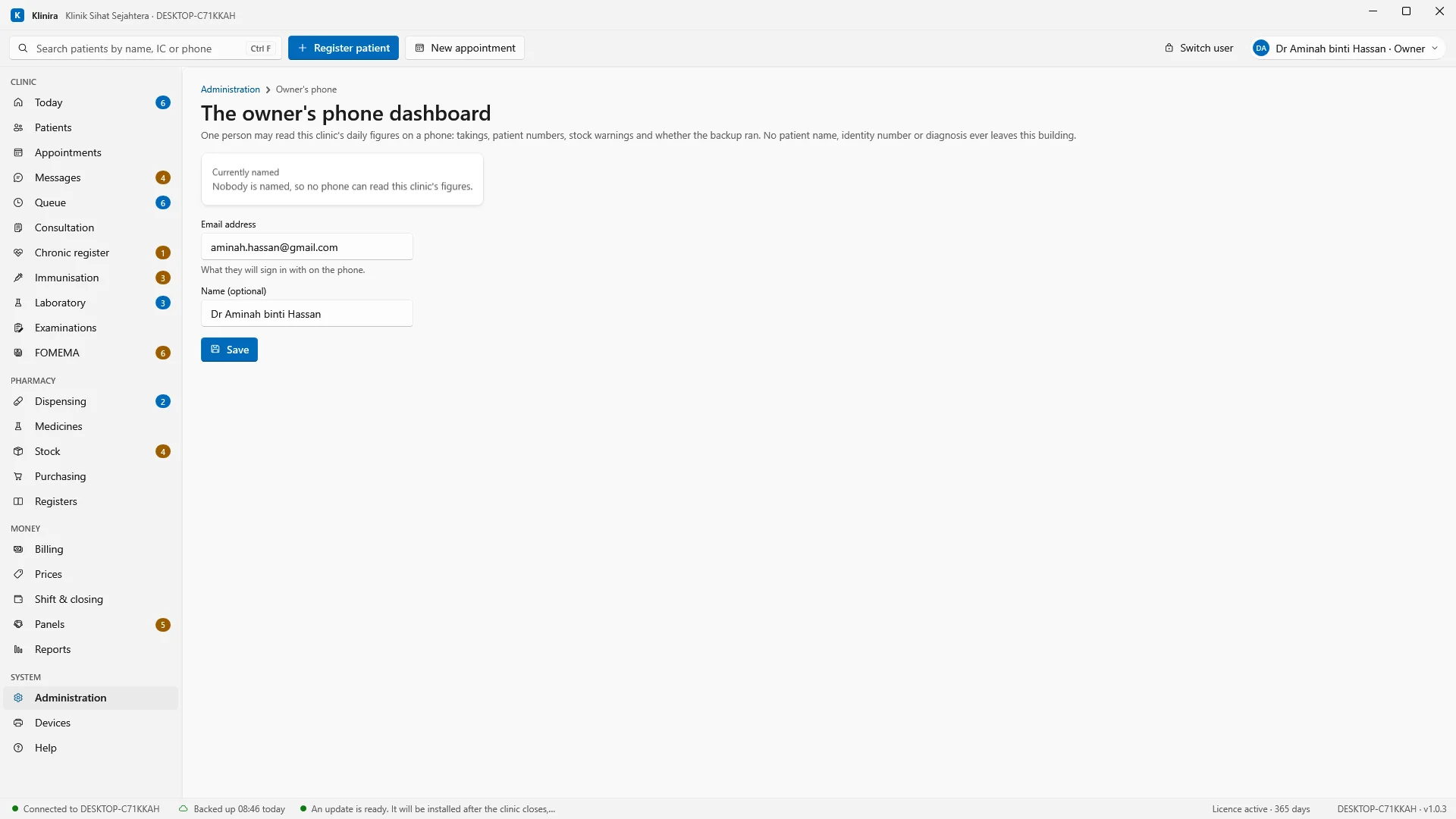
- 1Type the owner's email address here.
- 2Their name, if you like. The app greets them with it.
- 3Press Save.
- 1Type the owner's email address in the Email address box 1.
- 2If you like, type the owner's name in the Name (optional) box 2. The app greets them with it.
- 3Press Save 3. A green message says that address may now read the clinic's figures.
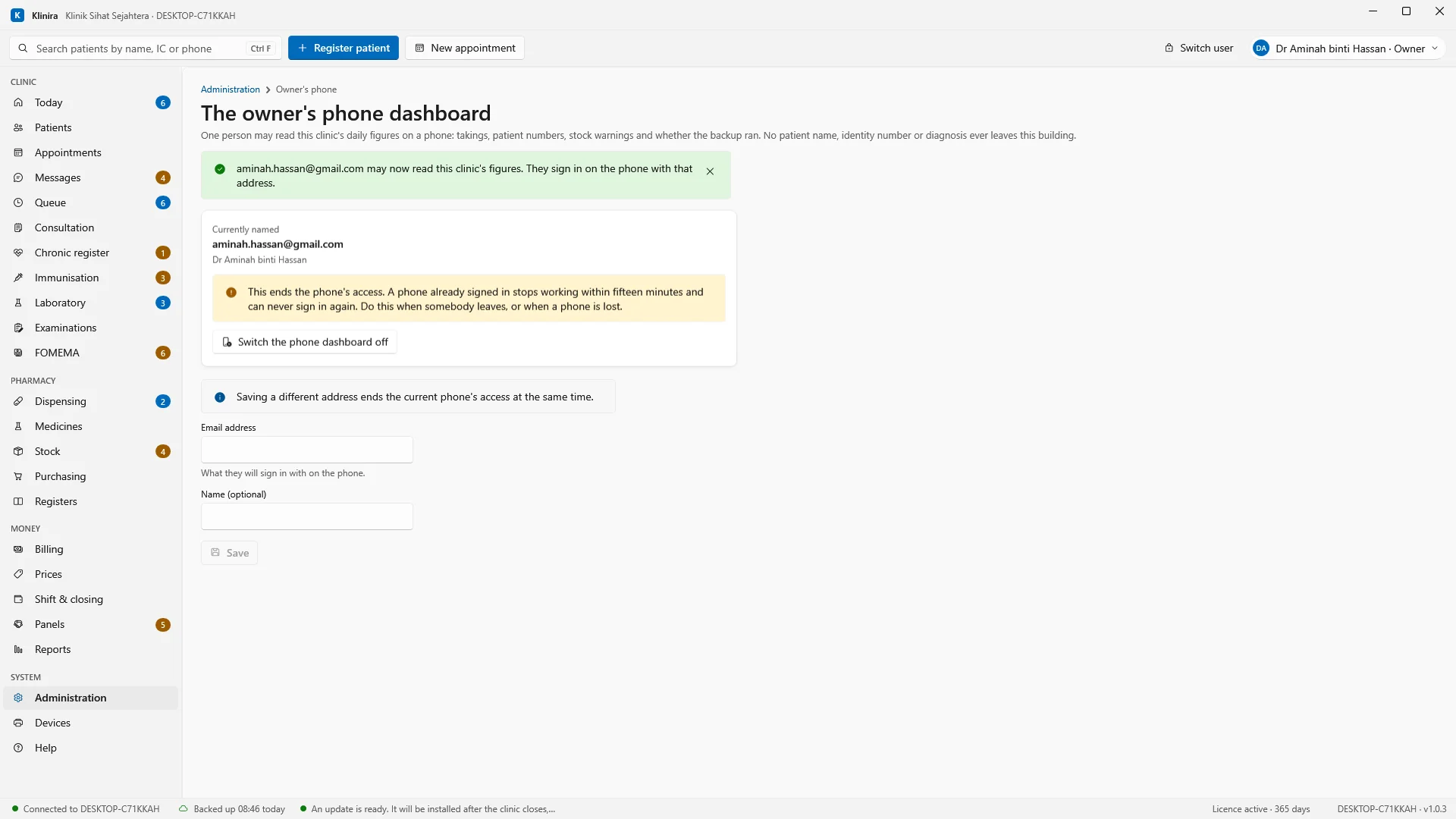
- 1Under Currently named: the address that may now sign in on the phone.
- 2Switches it off again, for example when a phone is lost.
Under Currently named 1 you now see the owner's email address. The button Switch the phone dashboard off 2 is there for later, when somebody leaves or a phone is lost. Do not press it now.
If you see a yellow message "This computer could not reach the internet" instead of the form, nothing has been changed. Wait until the internet is back and open the tab again.
Step 2: get the app from the App Store
- 1On the iPhone or iPad, open App Store (the blue icon with a white letter A).
- 2Press Search at the bottom.
- 3Type Klinira and press search on the keyboard.
- 4Find the app called Klinira.my - Owner. Its icon is a white square with two linked rings.
- 5Press Get, then confirm with Face ID, Touch ID or your Apple password. The app is free.
- 6When it has finished, press Open.
Step 3: sign in with your email and the six-digit code
There is no password for this app. Each time you sign in, a six-digit code is sent to your email.
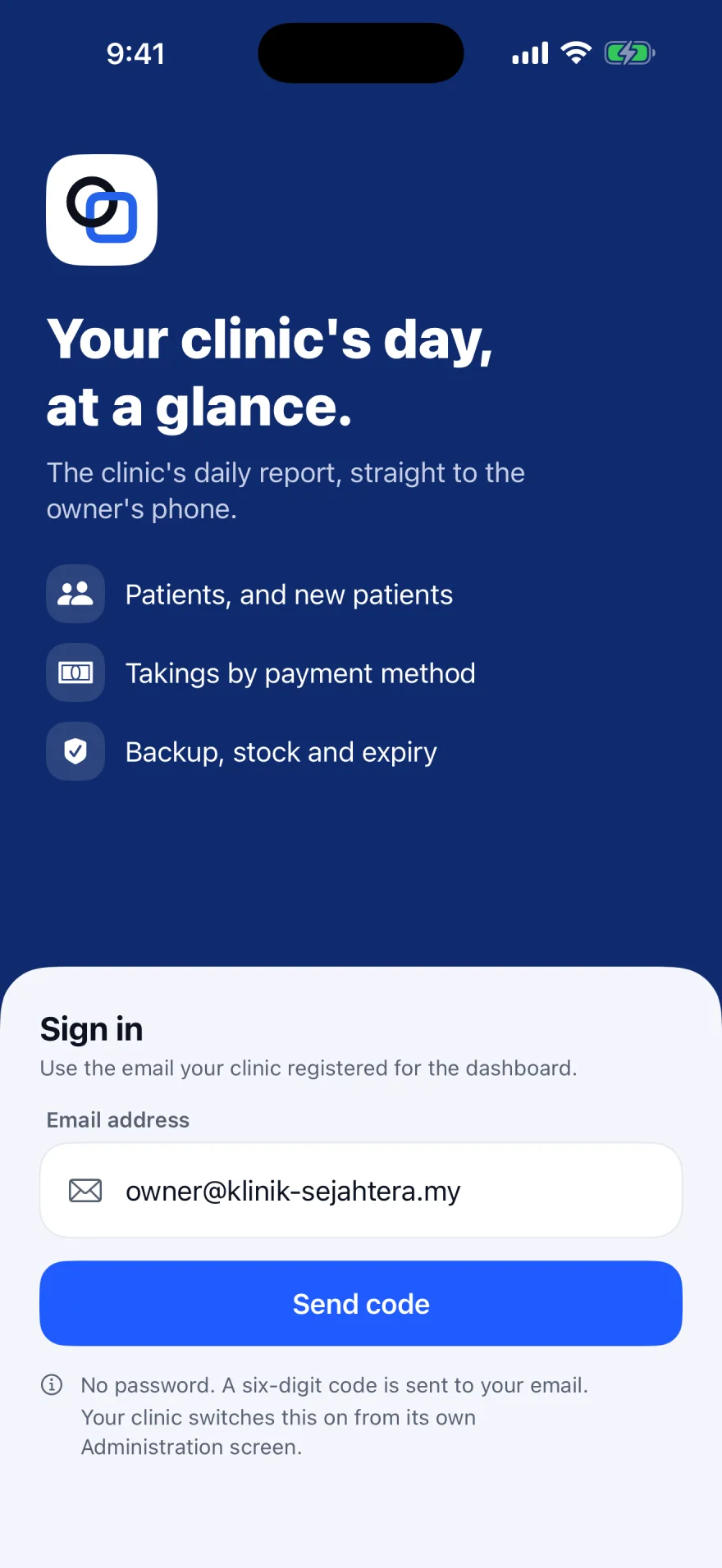
- 1Type your email address here.
- 2Press Send code.
- 1Press the Email address box 1 and type the email address the clinic saved.
- 2Press Send code 2. The screen Enter the code opens.
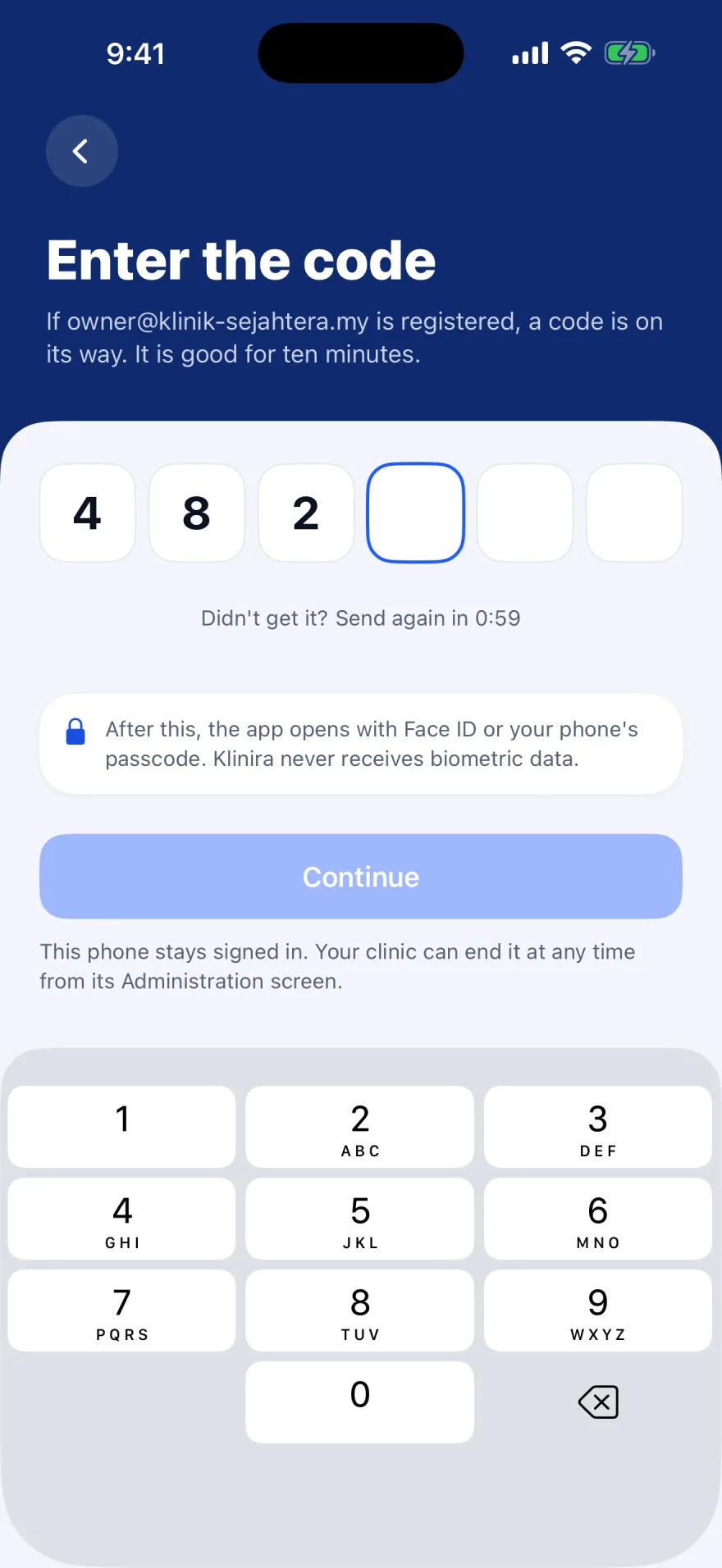
- 1Type the six digits here.
- 2No email? Wait for the timer, then press Send again.
- 3Press Continue.
- 4Typed the wrong email? Go back with this arrow.
- 1Open your email. Look for the message with the six-digit code. Check the spam or junk folder if it is not there.
- 2Go back to the Klinira app. Type the six digits 1. The code is good for ten minutes.
- 3Press Continue 3. The app opens on the Today page.
- 4If no email came, wait for the timer to finish and press Send again 2.
The screen says "If this address is registered, a code is on its way". It says this even for an address the clinic never saved, on purpose, so nobody can use the app to test addresses. If no code ever arrives, ask the clinic to check the address in Step 1.
Opening the app each time: Face ID or your passcode
You sign in with a code only once. After that the phone stays signed in, and the app opens with your face, your finger or the phone's passcode. Klinira never receives your face or fingerprint. The phone only tells the app yes or no.
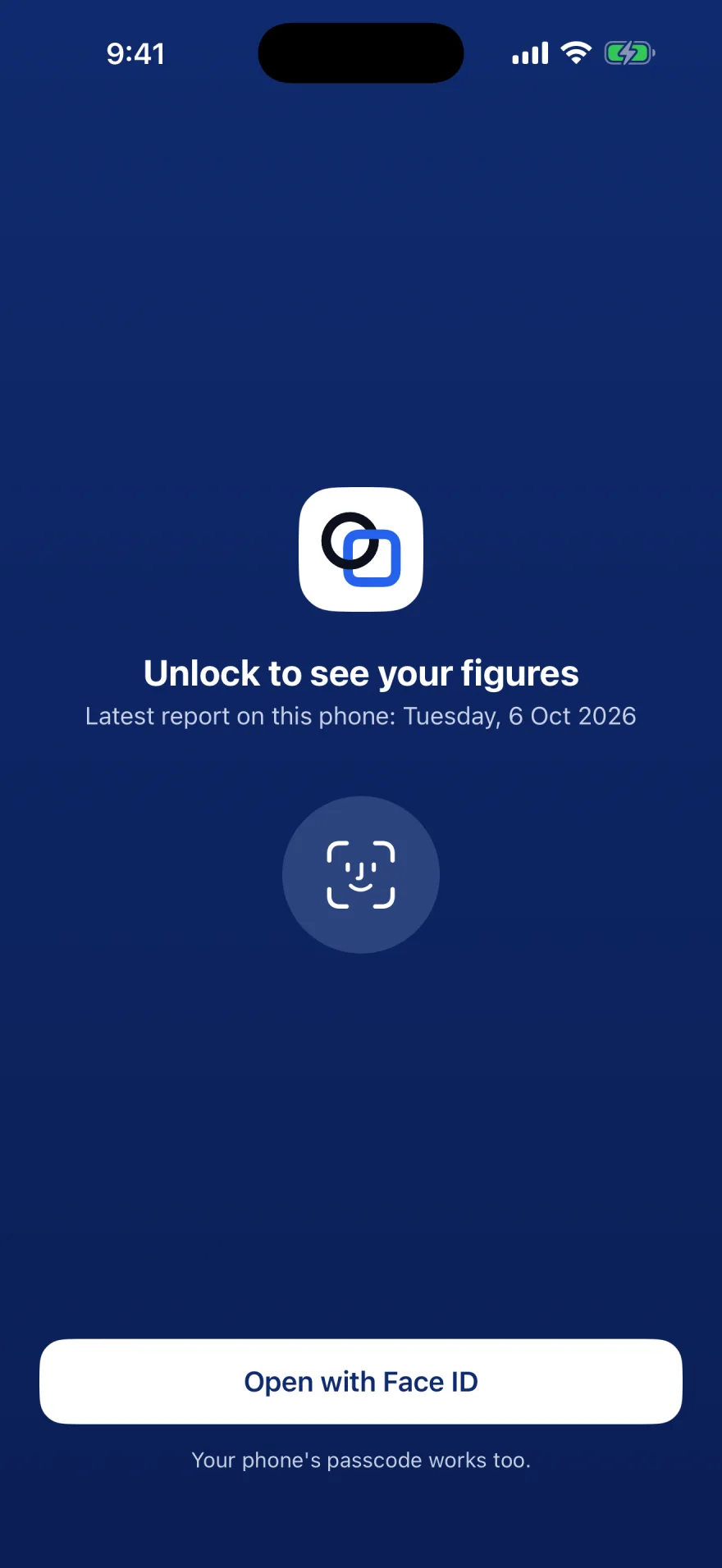
- 1The date of the latest report kept on this phone.
- 2Press Open with Face ID.
- 1Open the app. The screen Unlock to see your figures appears.
- 2Press Open with Face ID 2 and look at the phone. On a phone without Face ID the button says Open with phone passcode.
- 3If Face ID does not work, type the phone's passcode when it asks. That works too.
The Today page
This is the page the app opens on. It shows the latest day the clinic sent.
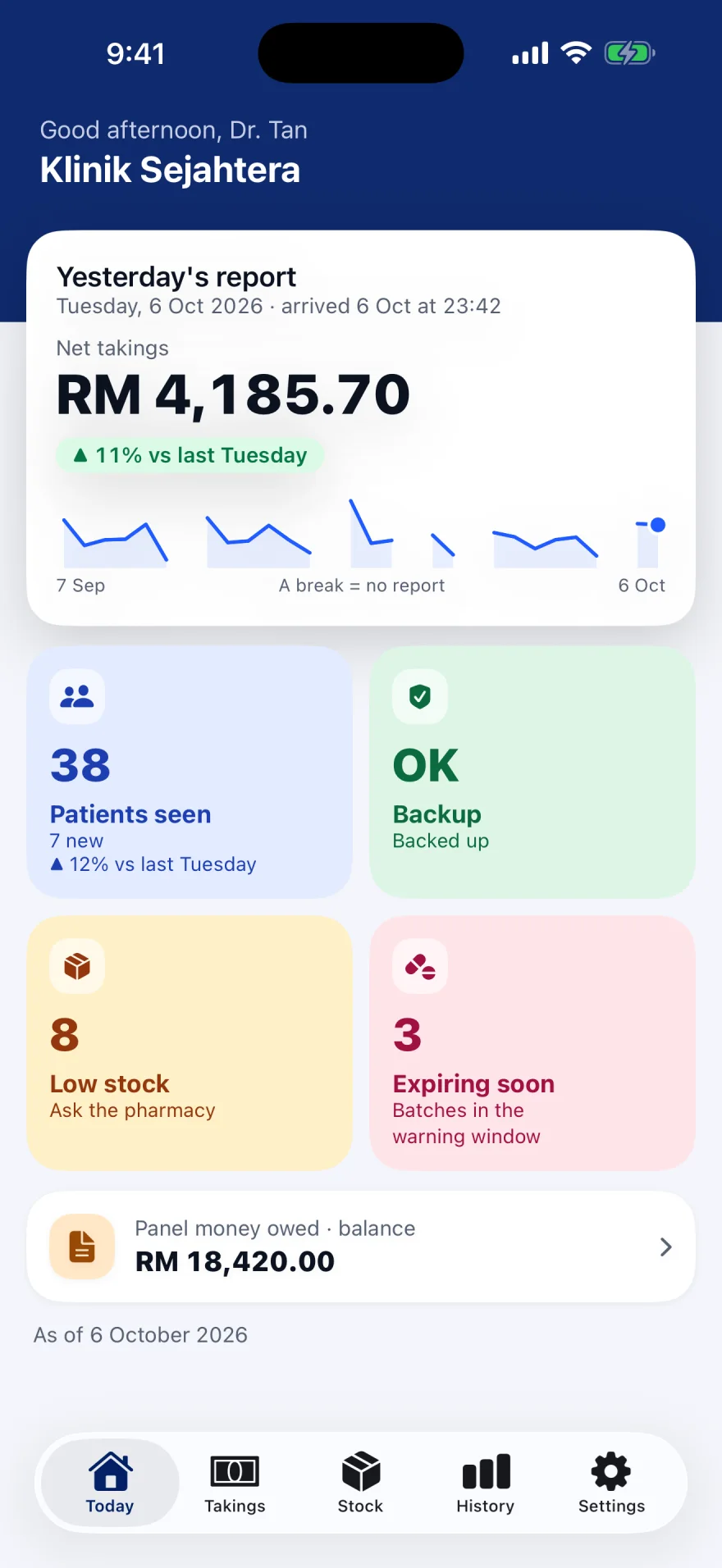
- 1Which day this is, and when it arrived.
- 2Net takings: all the money for that day.
- 3Compared with the same day last week.
- 4The last 30 days. A break in the line is a day with no report.
- 5The date these figures are for.
- Yesterday's report 1 means the figures are for yesterday. It says Today's report when the clinic sent today, and Latest report when the newest figures are older than yesterday, for example after a long weekend.
- Net takings 2 is cash, card, QR and panel bills added together, with refunds already taken off.
- The green pill ▲ 11% vs last Tuesday 3 compares with the same weekday exactly one week before. ▲ means more, ▼ means less. If that day has no report, or was zero, no pill is shown. It never compares with a different day.
- The line 4 shows 30 days. A break = no report: a gap is a day with no figures, often a closed day such as Sunday or a public holiday. The app does not fill the gap with a guess.
- 1Patients seen, and how many were new.
- 2Did the backup run?
- 3Medicines at or below their reorder level.
- 4Batches expiring soon.
- 5Panel money still owed to the clinic, in total.
- 6The five pages: Today, Takings, Stock, History, Settings.
- Patients seen 1: how many patients were seen that day, and how many of them were new. Press it to open History.
- Backup 2: Backed up means the clinic's backup is up to date. Behind means it is late. Never backed up means it has never run. If it is not Backed up, phone the clinic.
- Low stock 3 and Expiring soon 4: counts only. Press either to open Stock.
- Panel money owed · balance 5: everything the panels still owe the clinic, not what was billed that day. Press it to open Takings.
- To fetch the newest figures, pull the page down with your finger and let go.
The Takings page: where the money came from
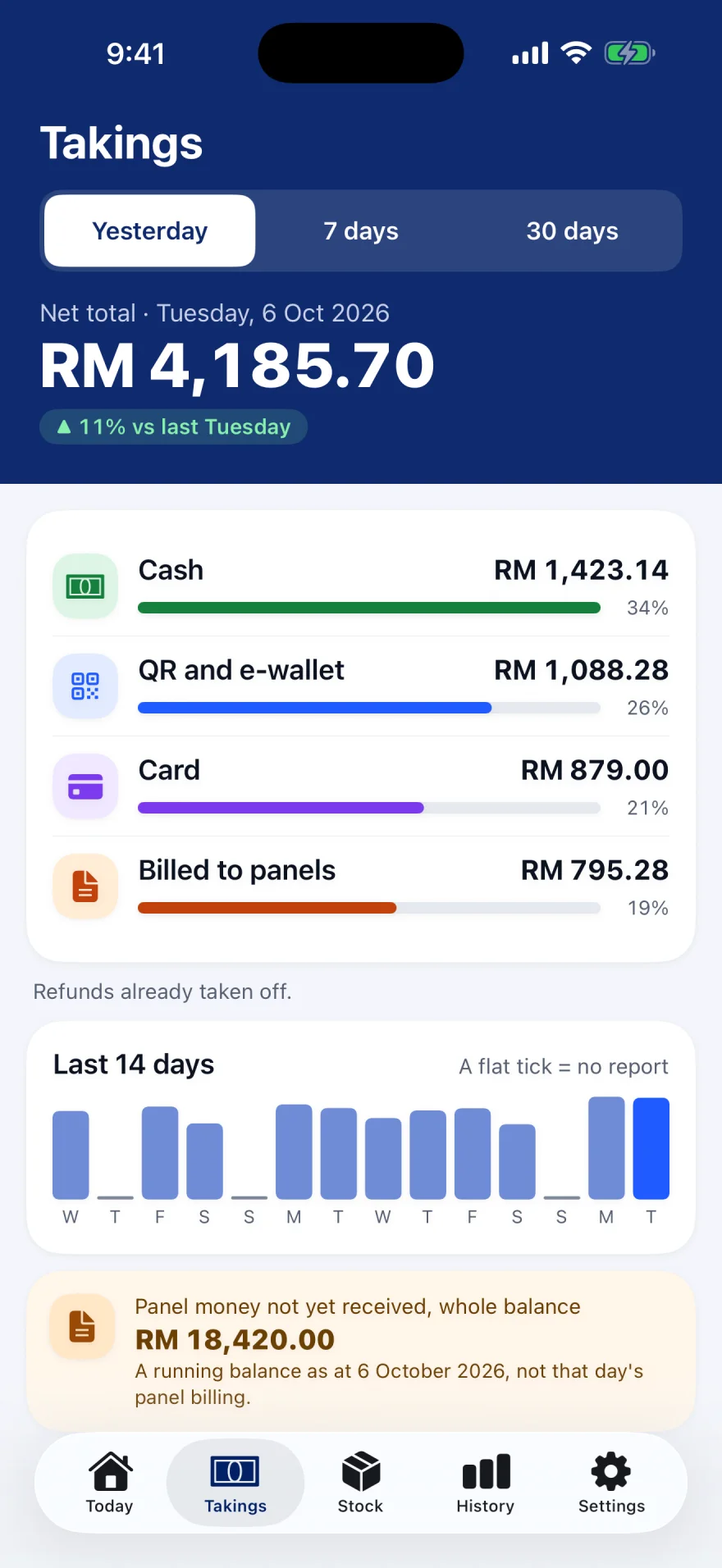
- 1Press Takings at the bottom.
- 2Choose one day, 7 days or 30 days.
- 3Cash, QR and e-wallet, card, and panel bills.
- 4The last 14 days. A flat tick is a day with no report.
- 1Press Takings 1 at the bottom of the screen.
- 2At the top 2, press Yesterday, 7 days or 30 days. The total changes to that period.
- 3Read the four lines 3. Each shows the amount and its share of the total.
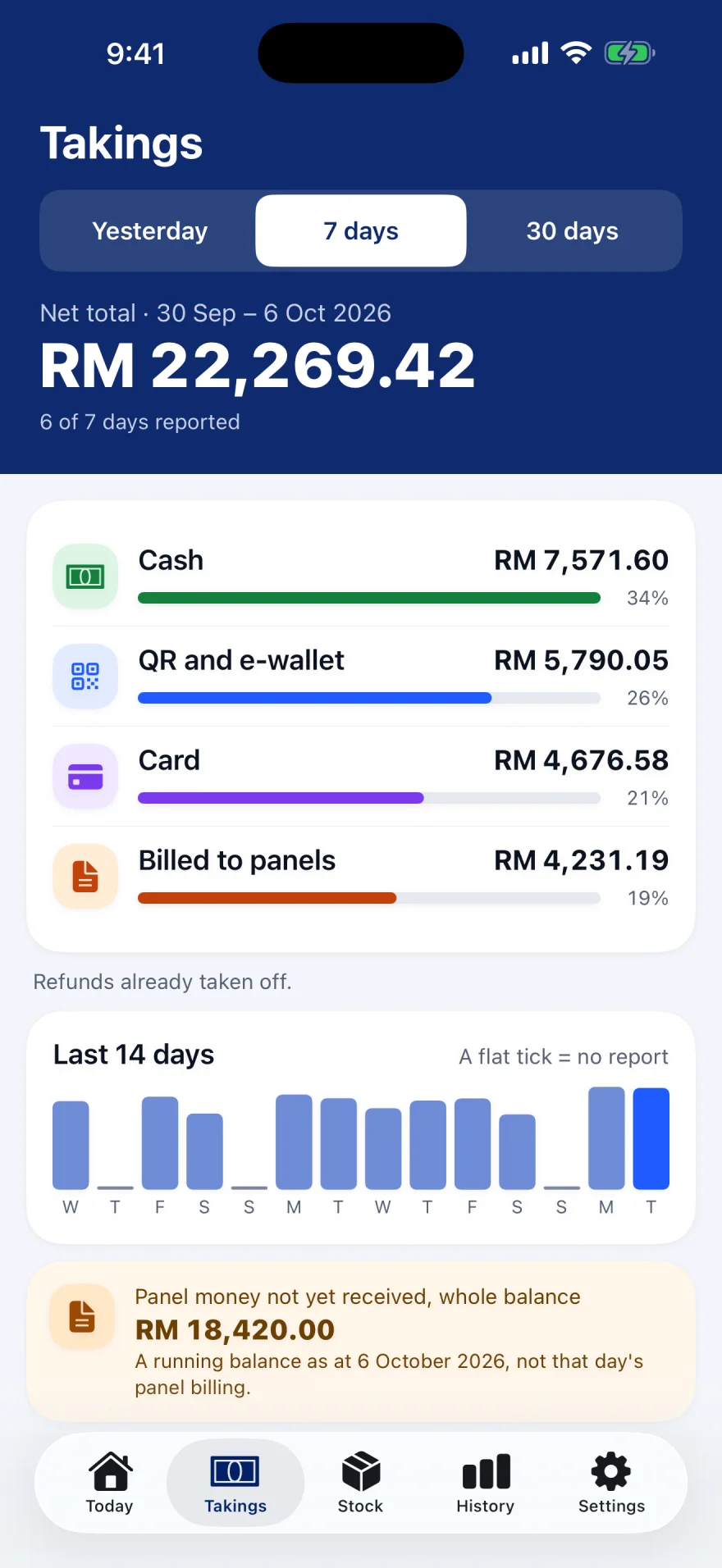
- 17 days is chosen.
- 26 of the 7 days have a report. The missing day was a closed day or a day with no report.
- Refunds already taken off. The total is what the clinic actually kept.
- Panel money not yet received, whole balance is a running total of everything the panels still owe, on the date shown. It is not that day's panel billing.
- 30 days works the same way as 7 days, over a month.
The Stock page
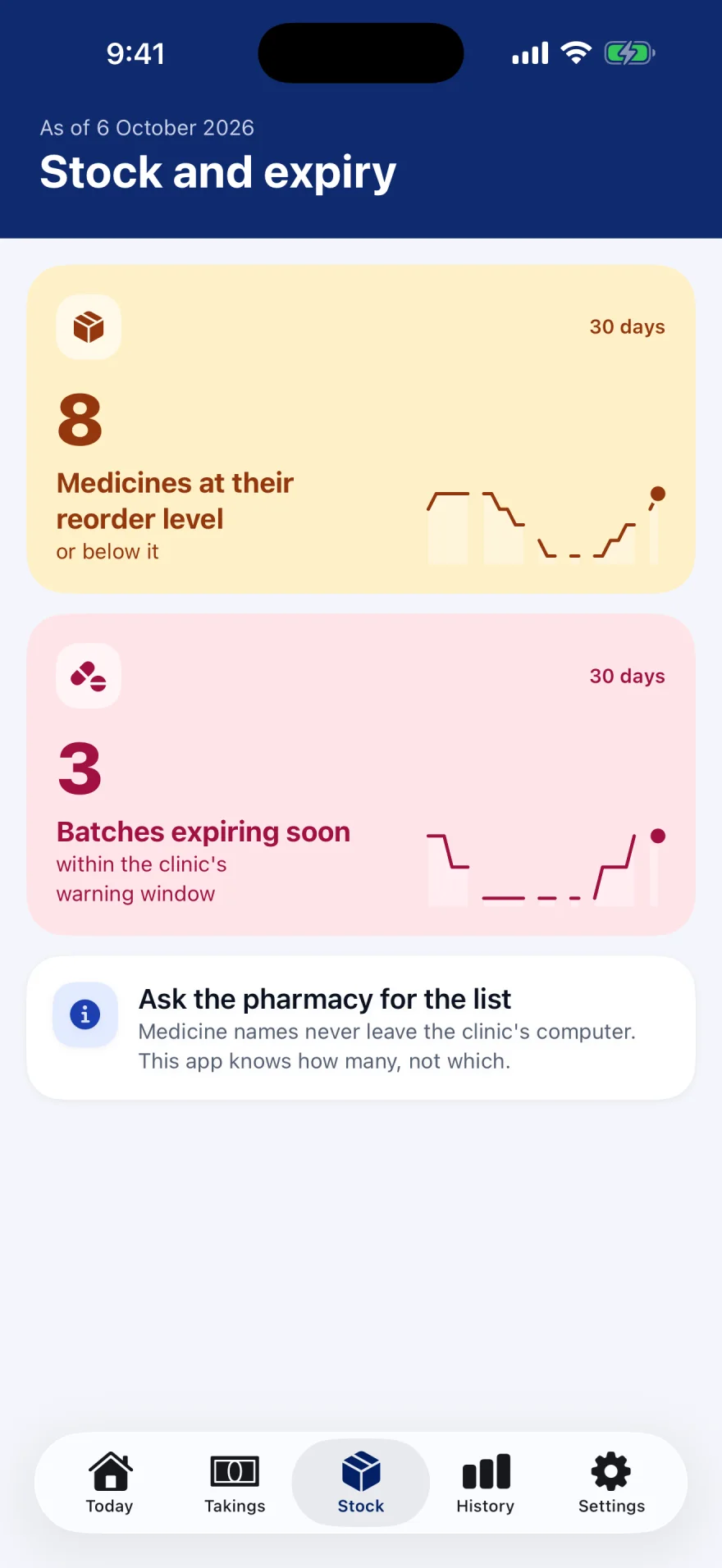
- 1Press Stock at the bottom.
- 2How many medicines are at their reorder level or below.
- 3How many batches expire soon.
- 4Which medicines? Ask the pharmacy.
The app knows how many, never which. Medicine names never leave the clinic's computer. To get the list, phone the clinic and ask the pharmacy.
The History page: the last 30 days
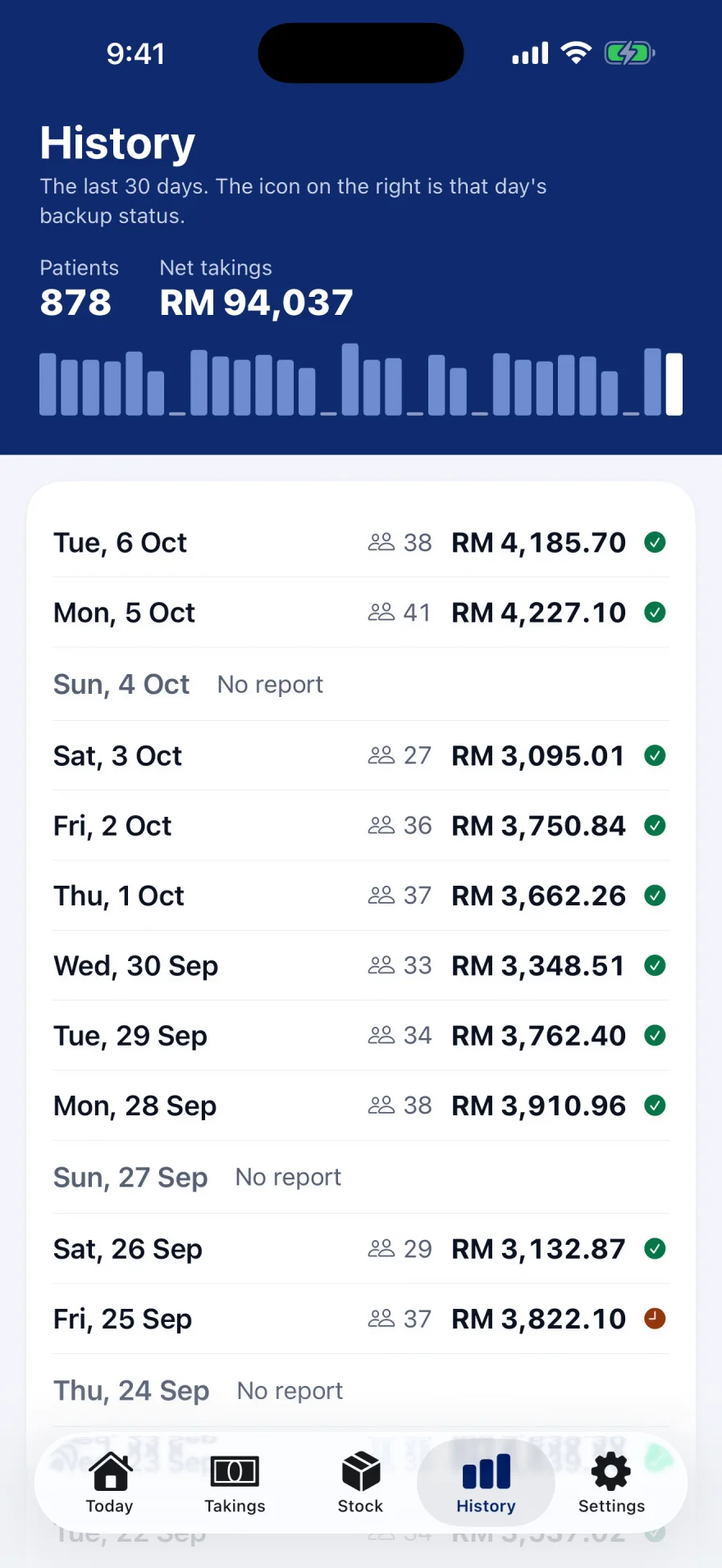
- 1Press History at the bottom.
- 2Totals for the 30 days.
- 3One day: patients, net takings, and the backup.
- 4No report: nothing arrived for this day.
- Each row 3 shows the date, the number of patients, the net takings, and a small sign for the backup.
- Green tick: Backed up. Orange clock: Behind. Red cross: Never backed up.
- No report 4 may be a closed day, a public holiday, or a night the clinic's internet was down. The app cannot tell which. Phone the clinic if you are not sure.
When the figures are old or missing
The app never guesses a figure. When nothing new has arrived, it tells you so, in a box at the top of Today.
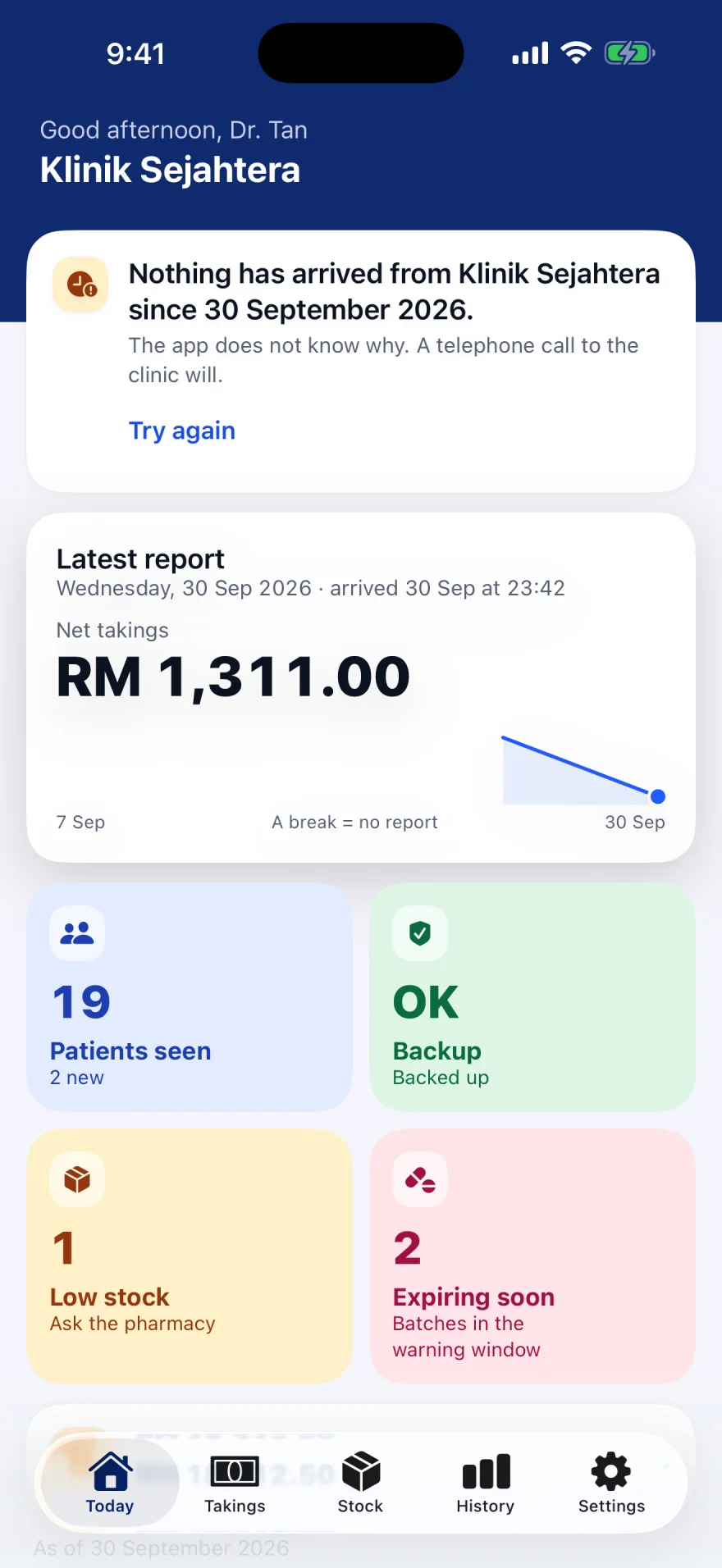
- 1Nothing has arrived since this date.
- 2Press Try again to check once more.
- 3Latest report: the last figures that did arrive.
- Last update: (date). Two or three days without new figures. Often only a weekend or a holiday. Nothing to do.
- Nothing has arrived from (clinic) since (date). More than three days. The figures are sent after the clinic's backup, so this can also mean the backup has not run. The app does not know why. Phone the clinic.
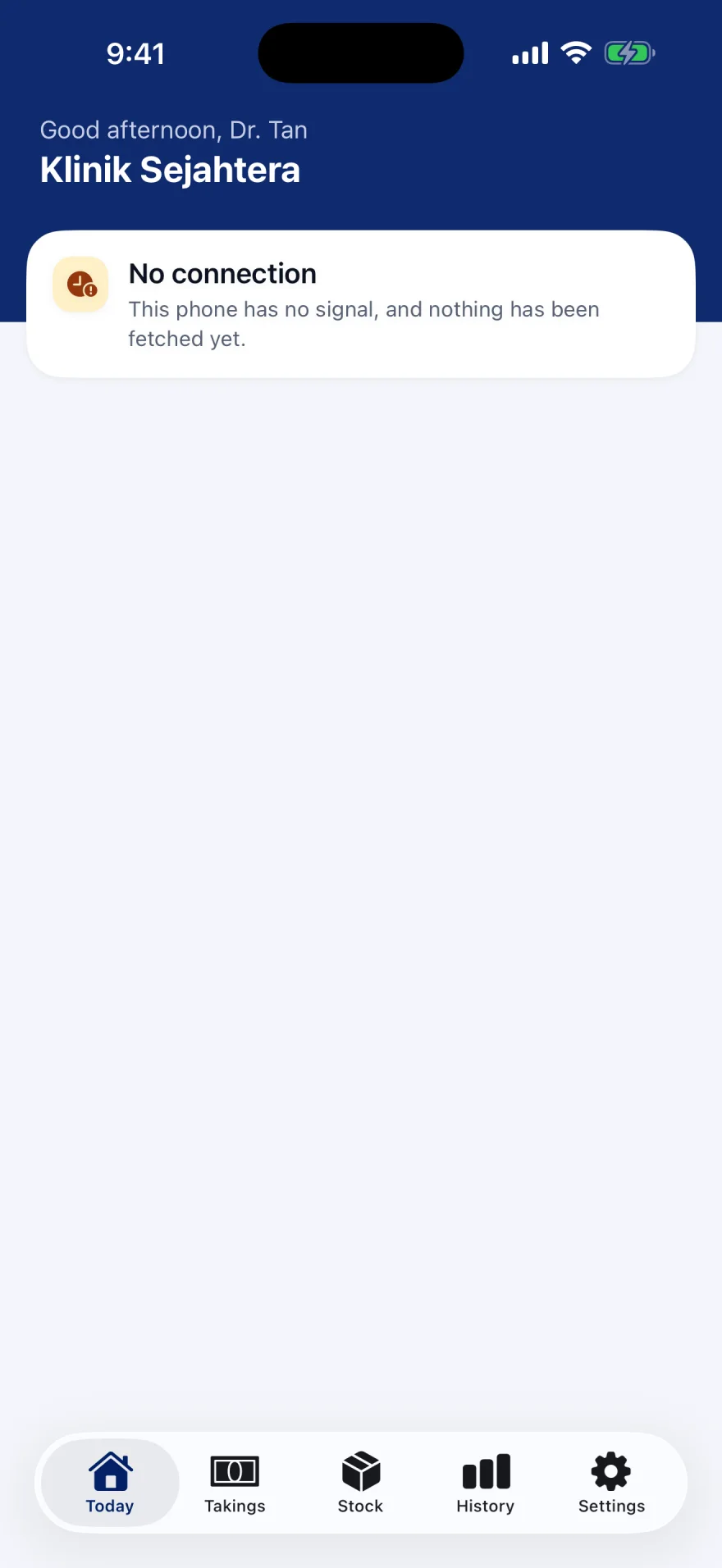
- 1No connection: this phone has no signal.
- No connection: your phone has no internet. Any figures shown below are the last ones the phone received. Turn on mobile data or Wi-Fi.
- Klinira Cloud is not answering: the problem is not your phone. The figures shown are the last ones received. Try again later.
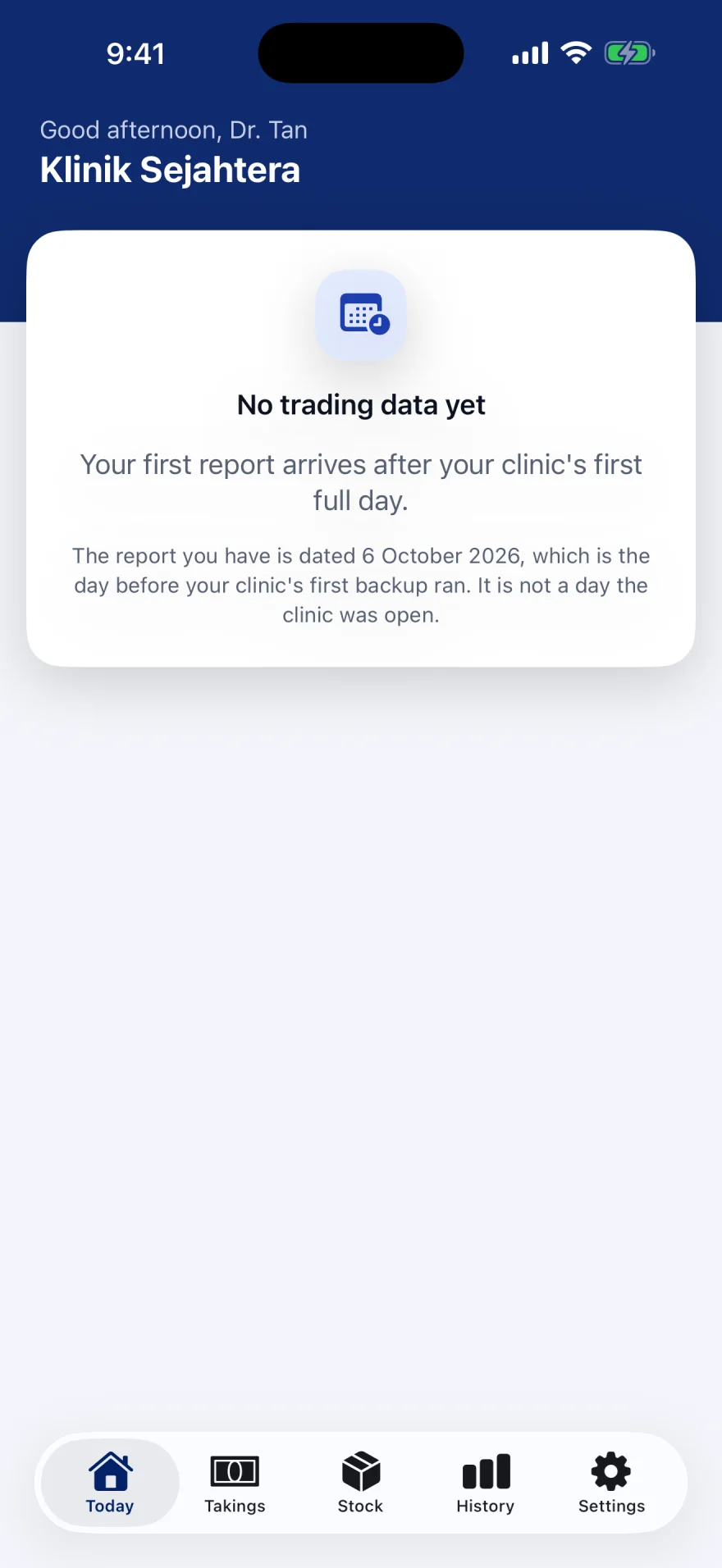
- 1No trading data yet: wait for the clinic's first full day.
- No trading data yet: the only report so far is for a day before the clinic opened on Klinira. It is not a bad day. The first real report arrives after the clinic's first full day.
- Nothing has arrived yet: the clinic has never sent a report. The first one arrives after its first full backup.
- No recent reports: the clinic sent reports before, but none in the last 30 days. Phone the clinic.
Settings, and changing the language
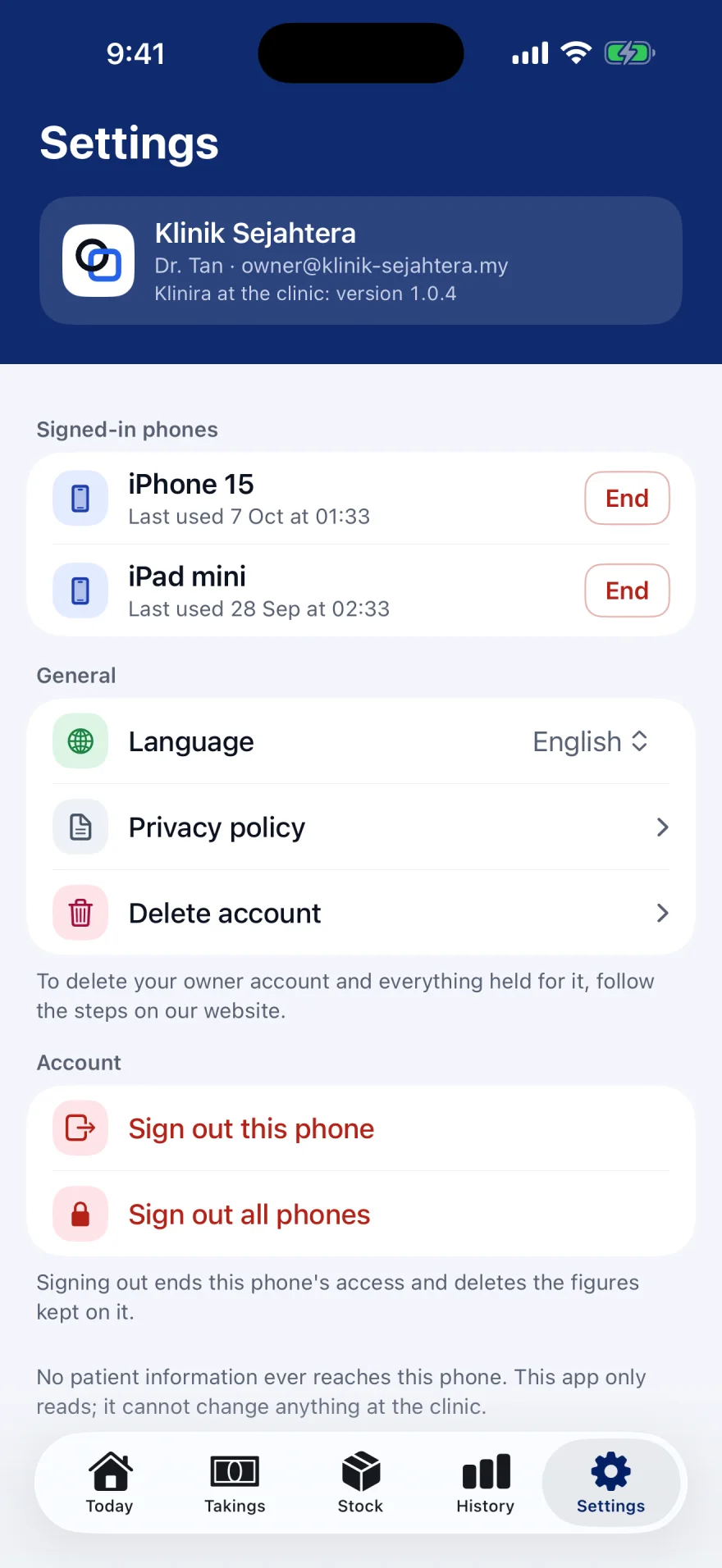
- 1Press Settings at the bottom.
- 2The clinic, your email, and the Klinira version at the clinic.
- 3End signs out that phone or iPad.
- 4Language: English or Bahasa Malaysia.
- 5Delete account.
- 6Sign out this phone.
- 7Sign out all phones.
- 1Press Settings 1 at the bottom of the screen.
- 2Press Language 4. A small list opens.
- 3Choose Bahasa Malaysia. The app's words change to Malay. To go back, choose English.
The top box 2 shows the clinic's name, your email, and Klinira at the clinic: version …. Read that version out if you ever phone Klinira support.
User guide, under General between Language and Privacy policy, opens this guide on the Klinira website, in the language the app is showing. The picture above was taken before that line was added, so it is not in it.
After you choose Bahasa Malaysia, the buttons are named in Malay:
| In English | In Bahasa Malaysia |
|---|---|
| Today | Hari ini |
| Takings | Kutipan |
| Stock | Stok |
| History | Sejarah |
| Settings | Tetapan |
| Sign out this phone | Log keluar telefon ini |
| Delete account | Padam akaun |
| User guide | Panduan pengguna |
If a phone or iPad is lost
Act quickly, but do not worry about patients: no patient information was ever on it. Choose one of these three ways.
- 1From another phone or iPad that is still signed in: open Settings. Under Signed-in phones, find the lost one by its name and press End 3 beside it. That one is signed out.
- 2To sign out everything at once: press Sign out all phones 7, then Sign out everywhere. Every phone is signed out, this one too. Sign in again with a new code afterwards.
- 3With no other device: at the clinic, open Administration, then Owner's phone, and press Switch the phone dashboard off. A phone already signed in stops working within fifteen minutes. To use the app again, save your email address once more, as in Step 1.
- 1Press Switch the phone dashboard off.
Signing out of this phone
- 1Press Settings at the bottom.
- 2Press Sign out this phone 6.
- 3The app goes back to the Sign in screen. The figures kept on the phone are deleted.
Do this before you give the phone to somebody else, sell it, or send it for repair.
Privacy, and deleting your account
- The app keeps only your email address, your name if the clinic typed one, and the clinic's daily figures. It is never used to track you.
- Privacy policy in Settings opens the full privacy policy on the Klinira website.
- Delete account in Settings opens a page on the Klinira website with the steps. In short: sign the phone out, then either ask the clinic to switch the phone dashboard off, or email hello@klinira.my from the address you sign in with and ask for the account to be deleted. Klinira replies to confirm and deletes it within 21 days.
- Deleting the owner account does not touch the clinic's patient records, its licence, or anything on its computers.
On an iPad
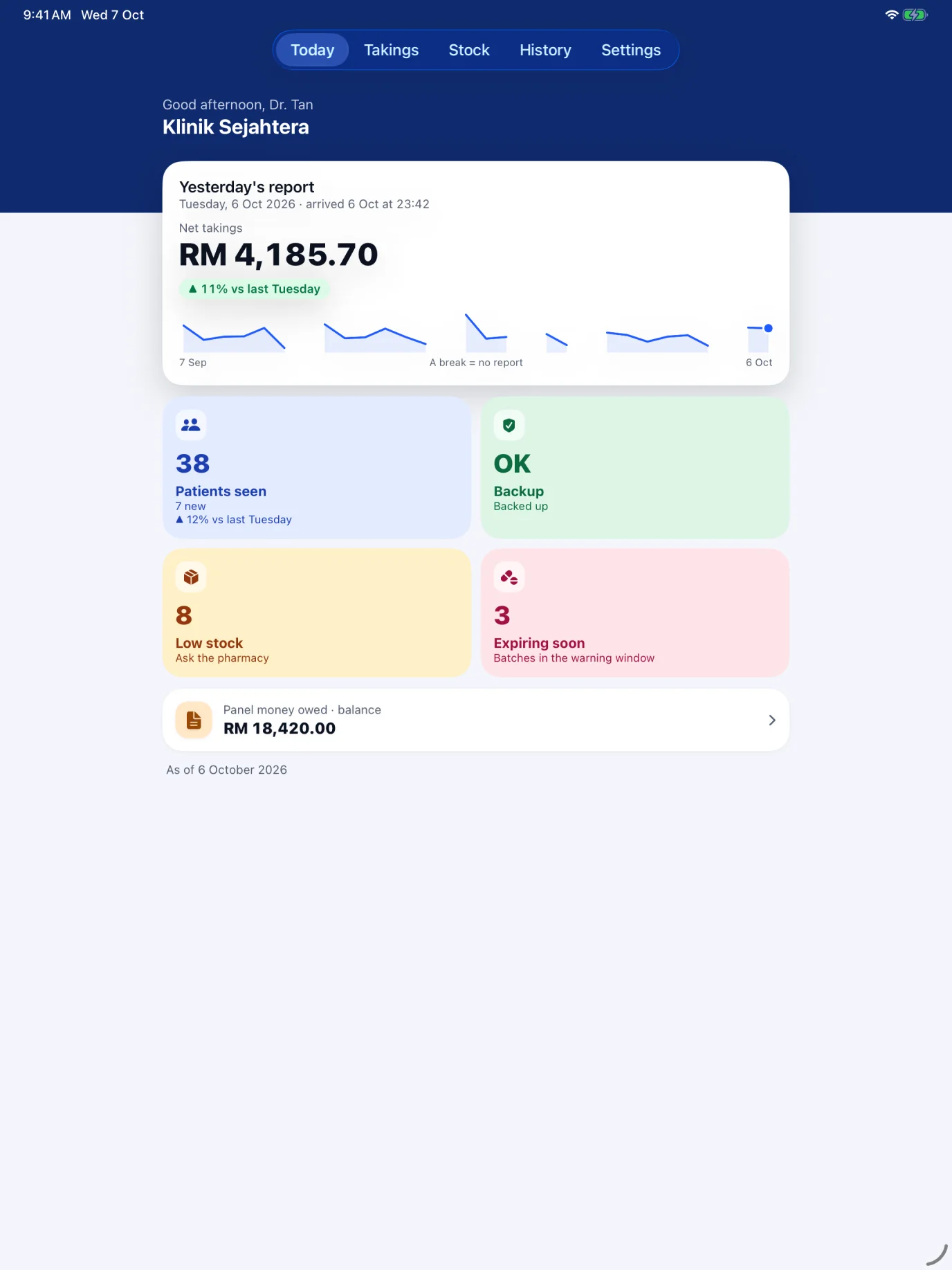
- 1The five pages are here, at the top.
- 2The latest report, exactly as on the iPhone.
Everything in this chapter works the same on an iPad. Get it from the App Store the same way, and sign in with the same email address. The iPad appears in Signed-in phones beside your iPhone.
If something goes wrong
- "The mobile dashboard is not switched on for this clinic" (KLN-1043). The clinic has not saved your email, or has switched it off. Ask them to do Step 1.
- "That code is incorrect or has expired" (KLN-1040) or "Too many incorrect attempts" (KLN-1041). Press Send again and use the newest code.
- "Too many codes requested" (KLN-1044). Wait one hour, then try again.
- "This device has been signed out" (KLN-1042). Somebody pressed End or Sign out all phones. Sign in again with your email and a new code.
- You cannot find the app in the App Store. Check the spelling, Klinira. If it is still not there, contact Klinira at hello@klinira.my.
Common questions
Can I see which patients came today?
No, never. The app shows how many patients, not who. Names, IC numbers and diagnoses never leave the clinic's computer.
Why do I see yesterday and not today?
The clinic sends each day once it is over, after its daily backup. Half a day would look like a bad day, so the app waits for the whole day.
What does the break in the line mean?
A day with no report, usually a day the clinic was closed. The app leaves the gap instead of guessing a figure.
Can I change anything at the clinic from the app?
No. The app only reads figures. To change something, phone the clinic or go there.
Can my manager use the app too?
Only one email address can be named for each clinic. That one address can sign in on more than one phone or iPad.
Does the app cost anything?
The app is free to download. It shows the figures of a clinic that uses Klinira and has switched the phone dashboard on.
I lost my phone. What now?
Sign it out from another device with End or Sign out all phones, or ask the clinic to switch the phone dashboard off. There was never any patient information on it.
Take a place in the first installs
Klinira is being built now. Leave your details and you will hear what is finished, be asked what your clinic actually needs, and get the first install dates when it is ready.