Signing in, the Quick PIN, and locking the screen
Everybody who uses Klinira signs in as themselves. It is not an administrative nicety: every note, every dispensing entry and every payment is recorded against whoever was signed in, and a shared account makes all of that say the same name.
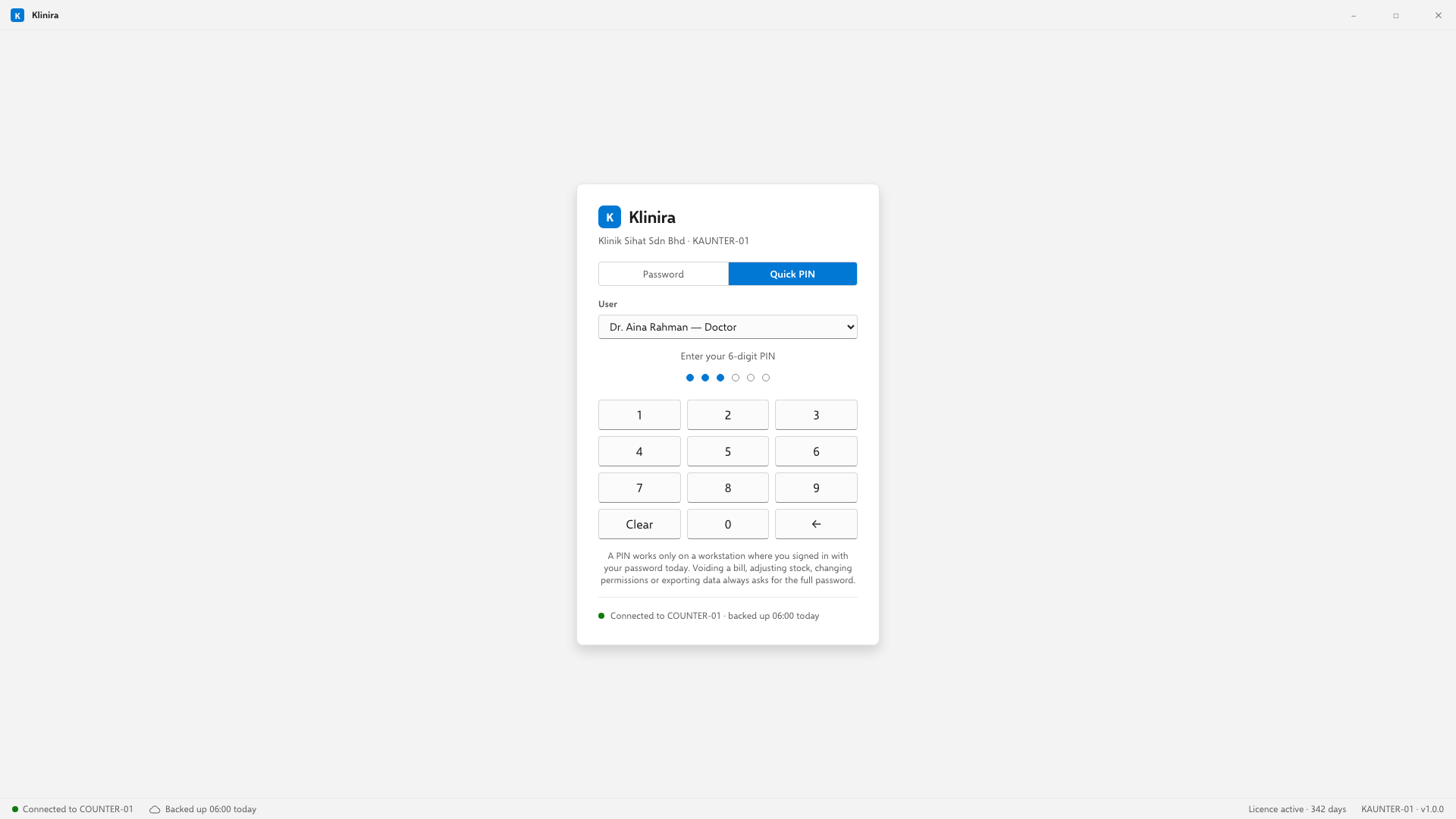
Your password and your Quick PIN
The password is the real credential. The Quick PIN is a shortcut for coming back to a machine you already signed in on today — it is quicker at a counter with a queue in front of it, and it is deliberately not enough on its own for anything serious.
| Action | PIN is enough |
|---|---|
| Registering a patient, booking, dispensing, taking a payment | Yes |
| Voiding a bill, refunding, adjusting stock | No — password |
| Merging two patients, deactivating a record | No — password |
| Adding staff, changing roles, exporting data | No — password |
| Activating or changing the licence | No — password |
Two-factor, for administrators
Anybody who can add staff or change roles must set up two-factor authentication. Klinira will not let an administrator work without it — not as a nag, but as a refusal, because an administrator account is the one that can reach everything.
Locking the screen
- Press Ctrl+L, or walk away and let it lock itself.
- Locking does not close anything. A half-typed consultation note is still there when you unlock.
- Unlock with your PIN or your password.
Locked out
Too many wrong passwords locks the account for a while. An administrator can clear it immediately from Administration, Staff — a doctor locked out at nine in the morning with a waiting room in front of them should not have to wait it out.
Take a place in the first installs
Klinira is being built now. Leave your details and you will hear what is finished, be asked what your clinic actually needs, and get the first install dates when it is ready.