Installing Klinira and setting up the clinic
One computer in the clinic holds the records and every other computer talks to it. The setup wizard runs once, on that computer, and it is the only part of Klinira that must be done in order.
Before you begin
- A Windows PC that stays switched on during clinic hours. This is the main PC and it holds the records.
- Your clinic's registration details: company registration number, ACT 586 registration, and the name of the registered doctor in charge.
- A printer, if you will print receipts or labels. It can be added later.
- Somewhere to keep a backup that is not the same physical disk: an external drive, or a folder in your own cloud storage.
The setup wizard
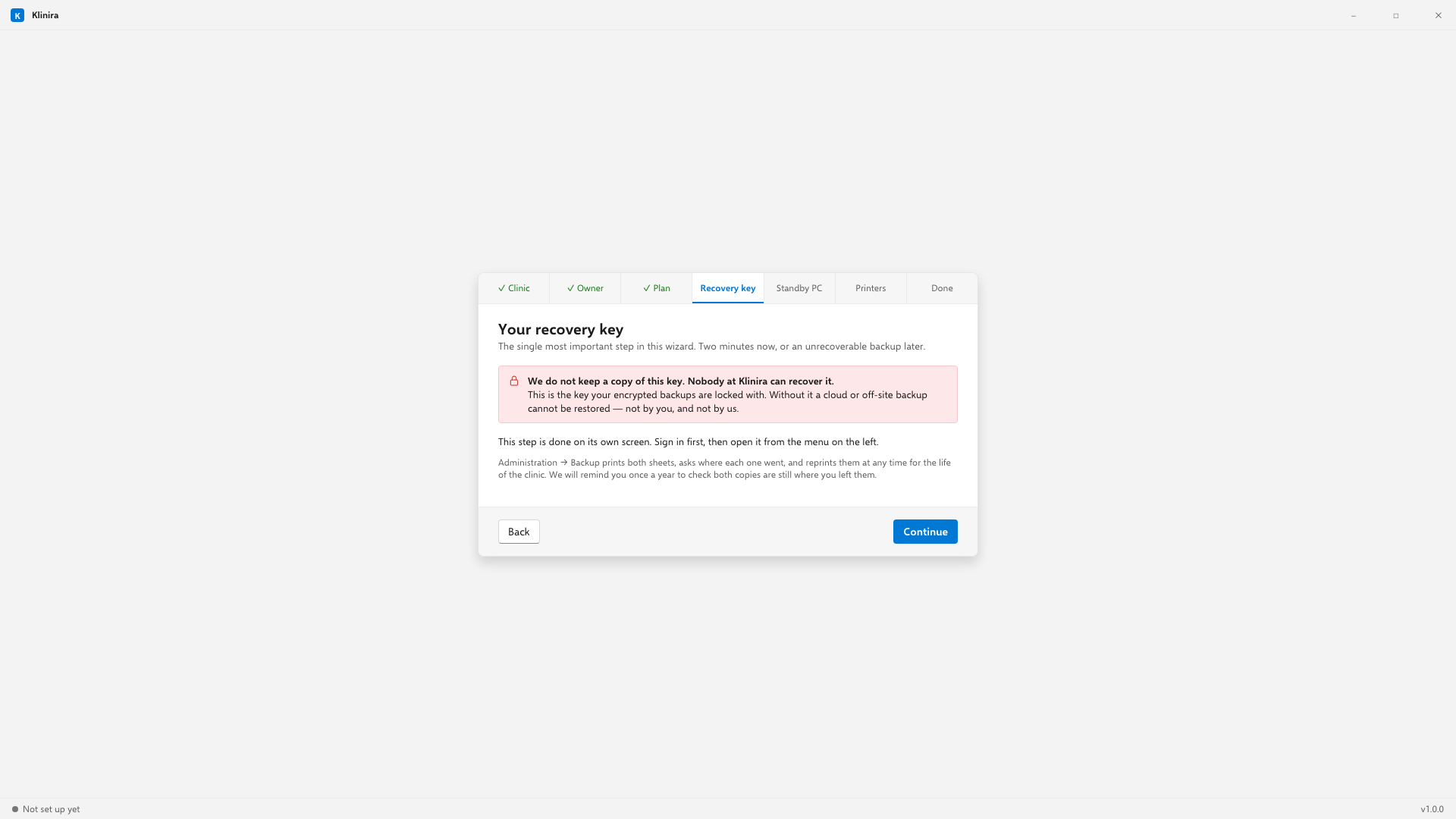
- 1Clinic details. The clinic name here appears on every receipt, label, prescription and certificate the clinic ever prints, so type it exactly as it is registered.
- 2Registration numbers. Company registration, ACT 586, and your SST and TIN numbers if you have them. SST and TIN can be left blank and filled in later.
- 3The owner's account. This is the first login, and it is an administrator. Choose a real password; you will hand it to nobody.
- 4The Recovery Key. Klinira prints two sheets. Read the next section before you press print.
- 5The licence. Start the 14-day trial, or activate a licence you have already paid for.
The owner's account
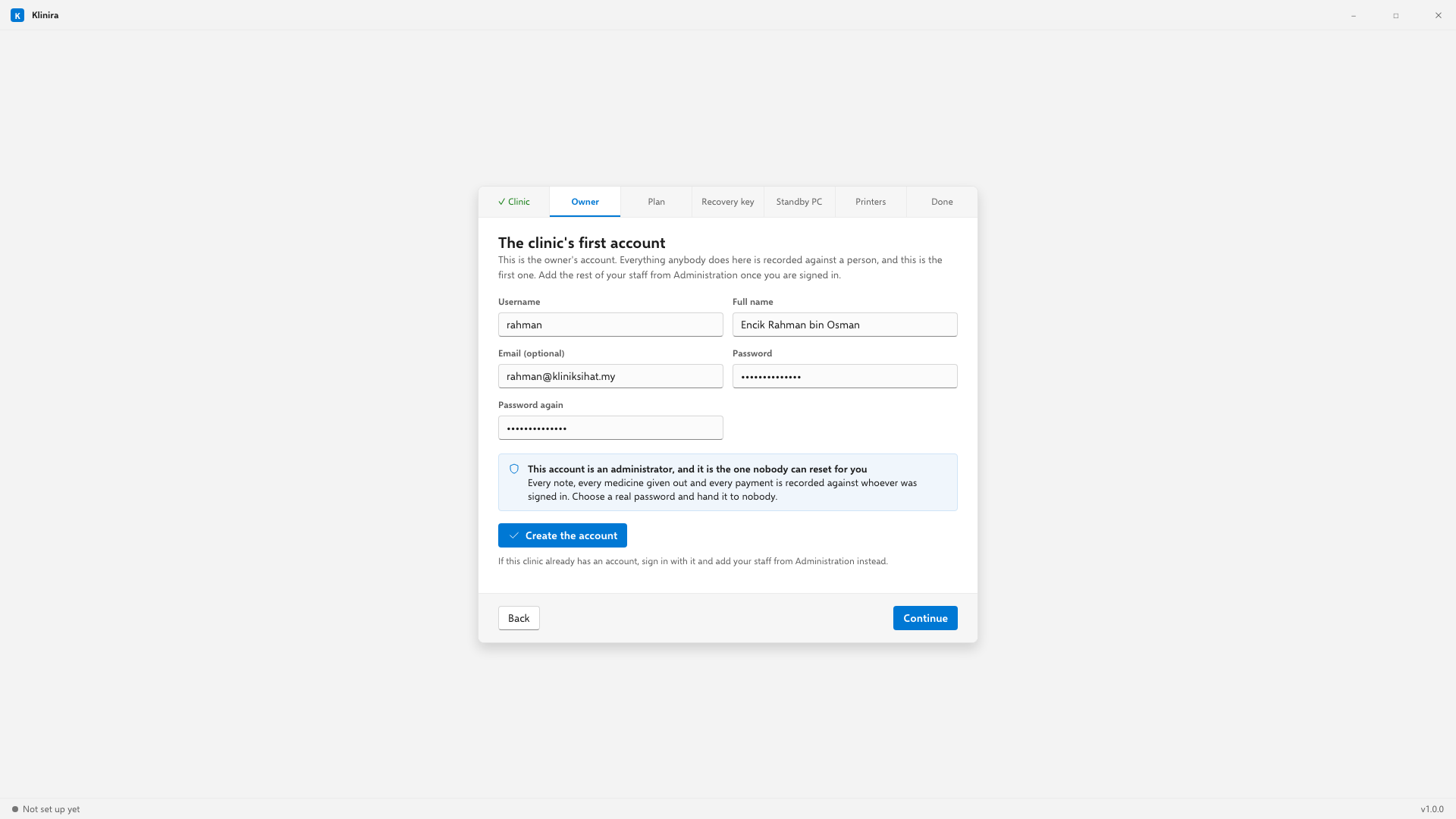
- Choose a real password and hand it to nobody. There is no reset for this one from outside the clinic.
- The email is optional. Nothing is sent to it during setup.
- Everybody else gets their own account afterwards, from Administration. Sharing one login means the audit trail says one person did everything.
The Recovery Key — read this twice
Your patient records are encrypted on the clinic's own disk. The Recovery Key is what opens them. We do not hold a copy, and there is no way for us to make one: if both printed sheets are lost, the records cannot be recovered by anybody, including us.
- 1Print both sheets. The wizard will not continue until you confirm you have.
- 2Put one in the clinic safe.
- 3Take the second one out of the building. A home safe, a bank deposit box, the accountant's office. Not the same room, and not the same building.
- 4Tick both locations in the wizard. It asks because no query can see whether a piece of paper is where you say it is.
Adding the second computer
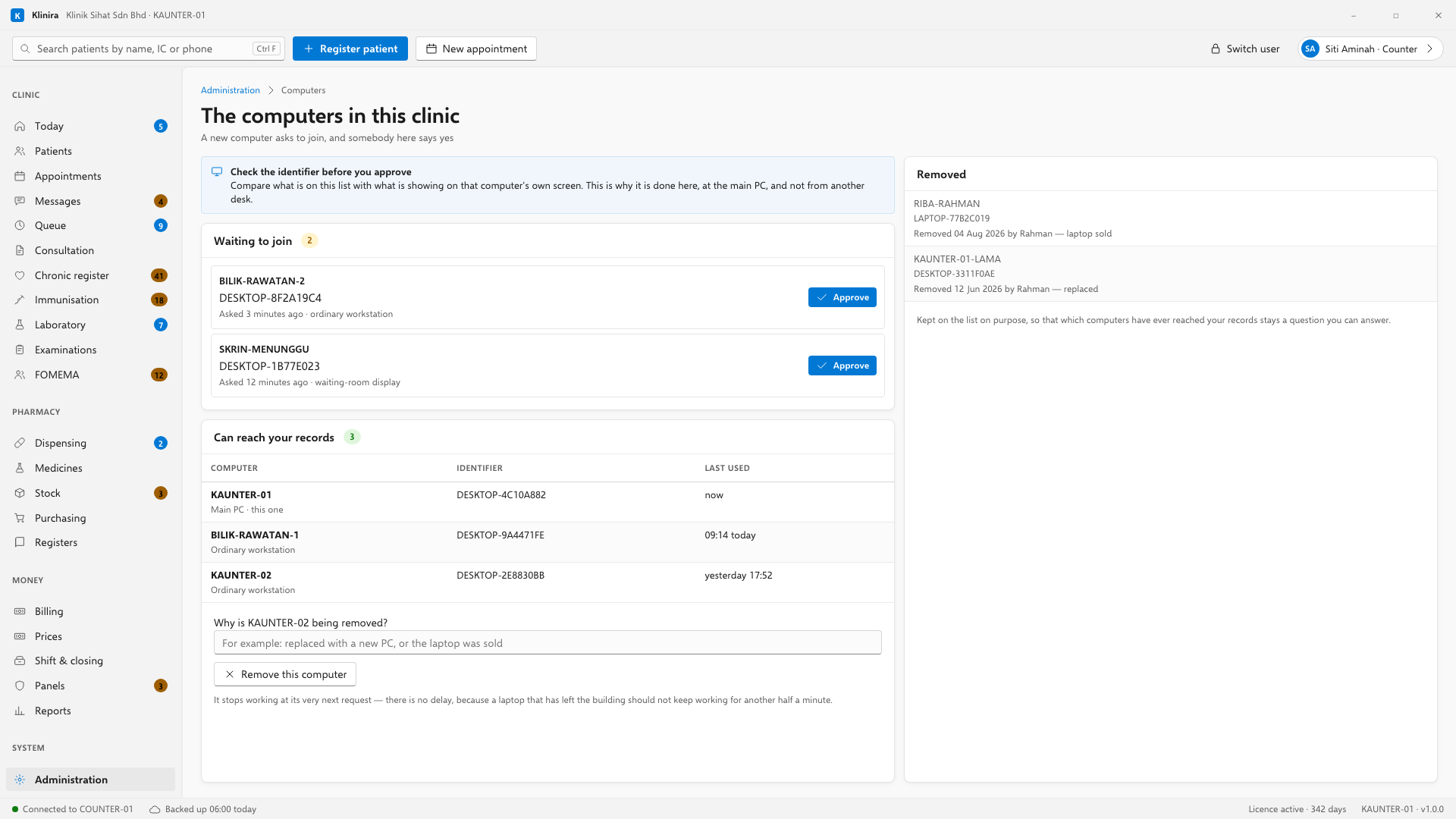
A clinic with a counter and a consulting room needs two computers. The second one installs the same application, finds the main PC on the clinic network, and asks to join. Nothing happens until somebody at the main PC says yes.
- 1Install Klinira on the second PC and open it.
- 2Choose Join an existing clinic. It searches the network and finds the main PC.
- 3On the main PC, open Administration, Computers. The waiting machine is listed by name.
- 4Check the name is the PC you expect, then approve it.
What will not work, and why
- The database file must not be put on a shared network folder or a NAS. Klinira will refuse. File sharing over a network is not reliable enough to hold medical records and it corrupts them quietly.
- Only the main PC touches the records. Every other computer asks it. That is what makes the clinic work when the internet is down.
- The main PC being switched off stops the other computers. Leave it on during clinic hours.
Take a place in the first installs
Klinira is being built now. Leave your details and you will hear what is finished, be asked what your clinic actually needs, and get the first install dates when it is ready.