The consultation
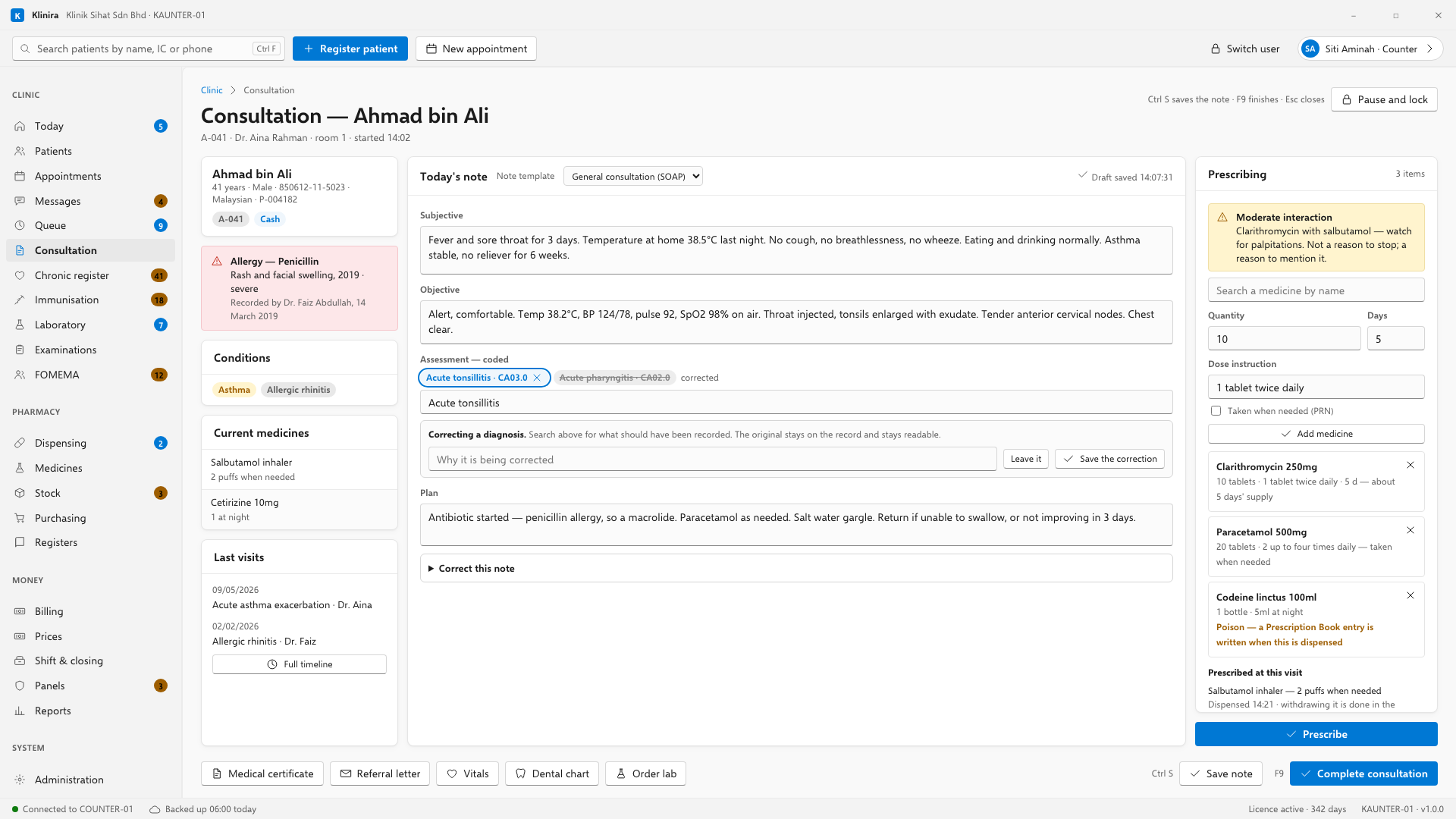
One screen holds the whole visit: what the patient says, what you find, what you diagnose, what you prescribe. It keeps working with the network cable out, and nothing you type is lost if the machine is switched off mid-sentence.
Working through a visit
- 1Open the patient from the queue. Their allergies and long-term conditions are already on screen.
- 2Record vitals, if the nurse has not.
- 3Write the note. Use a template if one fits — templates are text with the gaps marked, not forms.
- 4Add the diagnosis. Start typing and the list narrows; the ones you use most rise to the top over time.
- 5Prescribe, if there is anything to prescribe. See the next chapter.
- 6Press Complete. That writes the note into the record and ends the visit.
Choosing the note template
The picker sits beside Today's note. Klinira ships several — a general consultation laid out as SOAP, a short one for a follow-up, and one or two per kind of clinic — and a clinic can write its own. Changing it changes which boxes the note has; what you have already typed into a box both templates share stays where it is.
A note cannot be edited afterwards
Once a note is written into the record it stays exactly as it was. Correcting one writes a new version and marks the old one as superseded; both stay readable, and the record shows who wrote each and when. This is a legal requirement for a medical record in Malaysia, not a Klinira preference.
- 1Open the visit again and find Correct this note at the foot of the note.
- 2Show every version first, if you want to see what is already there. Superseded versions stay on the list with the reason each was corrected.
- 3Edit the note above, say what you are correcting, then save.
Correcting a diagnosis
A diagnosis is corrected the same way and for the same reason. Click the one that is wrong, search above for what should have been recorded, say why, and save. The original stays on the record with the word corrected beside it — so anybody reading the visit later can see that it was one condition coded wrongly and not two conditions the patient has.
Vitals and the growth chart
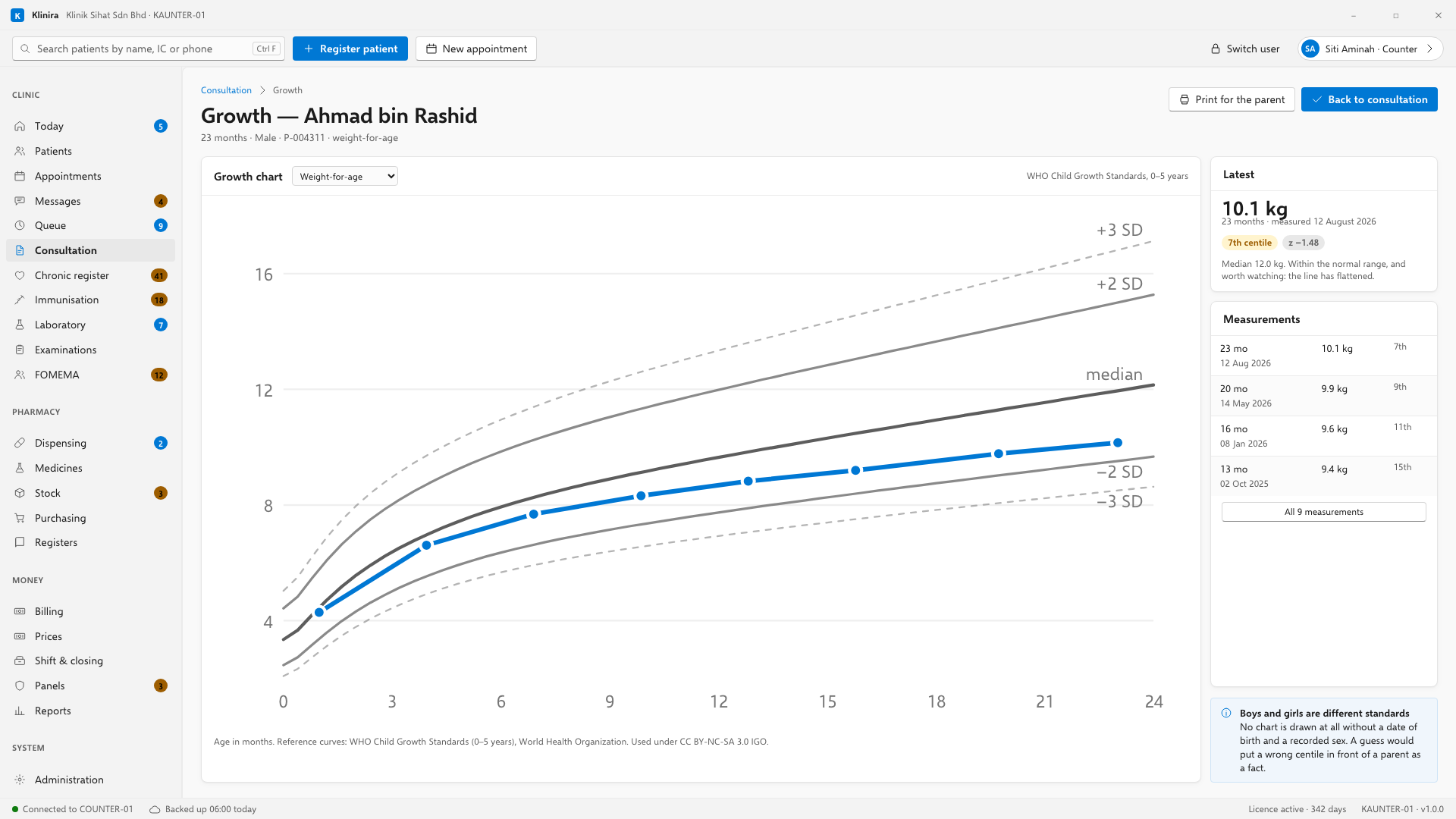
- Weight, height and head circumference plot against the WHO curves for the child's age and sex.
- Print it for the parent to take home. That is what the chart is mostly for.
- Blood pressure, pulse, temperature and oxygen saturation are flagged when they fall outside the usual range for the patient's age.
Alerts do not block you
If you prescribe something the patient is allergic to, or that interacts with what they are already taking, Klinira interrupts, shows you what it found and asks for a reason. Then it records the reason and lets you carry on. It never refuses.
Working offline
A consultation works with the network cable out. The note saves locally and goes to the main PC when the connection returns. What does not work offline is dispensing and billing, and there is a chapter on why.
Take a place in the first installs
Klinira is being built now. Leave your details and you will hear what is finished, be asked what your clinic actually needs, and get the first install dates when it is ready.